

dtmdragon
-
Posts
2,123 -
Joined
-
Last visited
-
Days Won
28
Content Type
Profiles
Forums
Gallery
Downloads
Store
Everything posted by dtmdragon
-
View File F-4E Kurnass 2000 for Strike Fighters 2 Israeli Air Force F-4E Kurnass 2000 for Strike Fighters 2 Features: -Modernized cockpit and avionics -Modernized weapons capability -Most advanced version of the F-4E used by the Israeli Air Force -Extensive RWR.TGA files and updated RWR.LST -All weapons from load out file included ( most are from MGunny's Ordnance Shop II for SF2 ) INSTILATION: Drop files in to appropriate folders, override when asked to. NOTE: Has only been tested/used in a merged install of ALL SF2 titles Credit goes to Wrench and Third Wire for the original aircraft this has been modified from Submitter dtmdragon Submitted 11/23/2010 Category F-4
-
Italian AMX for Strike Fighters 2 Upgraded/Modernised
dtmdragon posted a topic in File Announcements
View File Italian AMX for Strike Fighters 2 Upgraded/Modernised Italian AMX for Strike Fighters 2 Upgraded Features: -Year specific versions to reflect the major upgrade of the Italian AMX to give it a modern cockpit/avionics and improved smart weapons such as JDAM -Modernized weapons capability and load out files -Modernized cockpit with MFD and HUD -High and low visibility markings -Extensive RWR.TGA files and updated RWR.LST -All weapons from load out file included ( most are from MGunny's Ordnance Shop II for SF2 ) INSTILATION: Drop files in to appropriate folders, override when asked to. NOTE: Has only been tested/used in a merged install of ALL SF2 titles Credit: pcpilot Submitter dtmdragon Submitted 11/23/2010 Category Other -
View File Mig-21 LanceR A & C updated for Strike Fighters 2 Romanian Air Force Mig-21 LanceR A & C models updated for Strike Fighters 2 Features: -A model LanceR -B model LanceR -Modernized cockpit with HUD & TWS RWR -Correct loadout files with Python 3 missiles, LGBs and LITENING pod -Modernized weapons capability with ability to carry NATO and Israeli ordinance -Modernized Elta EL/M-2032 Air combat radar and avionics -Extensive RWR.TGA files and updated RWR.LST -All weapons from load out file included ( most are from MGunny's Ordnance Shop II for SF2 ) INSTILATION: Drop files in to appropriate folders, override when asked to. NOTE: Has only been tested/used in a merged install of ALL SF2 titles Credit: Eagle99 Submitter dtmdragon Submitted 11/23/2010 Category MiG-21
-
View File Royal Australian Air Force F/A-18 Hornet for Strike Fighters 2 Royal Australian Air Force F/A-18 Hornet for Strike Fighters 2 Features: -Separate Low and High visibility markings. -Year specific versions to represent the major upgrades that added the ASRAAM/AIM-120 missiles and enhanced its smart weapons capability. -Extensive RWR.TGA files and updated RWR.LST -All weapons from load out file included ( most are from MGunny's Ordnance Shop II for SF2 ) INSTILATION: Drop files in to appropriate folders, override when asked to. NOTE: Has only been tested/used in a merged install of ALL SF2 titles Credit: Spectre8750 & Dave Submitter dtmdragon Submitted 11/23/2010 Category What If Hangar
-
View File Royal Australian Air Force F/A-18F Super Hornet for Strike Fighters 2 Royal Australian Air Force F/A-18F Super Hornet for Strike Fighters 2 Features: -Extensive RWR.TGA files and updated RWR.LST -All weapons from load out file included ( most are from MGunny's Ordnance Shop II for SF2 ) INSTILATION: Drop files in to appropriate folders, override when asked to. NOTE: Has only been tested/used in a merged install of ALL SF2 titles Credit: EricJ & FastCargo Submitter dtmdragon Submitted 11/23/2010 Category What If Hangar
-
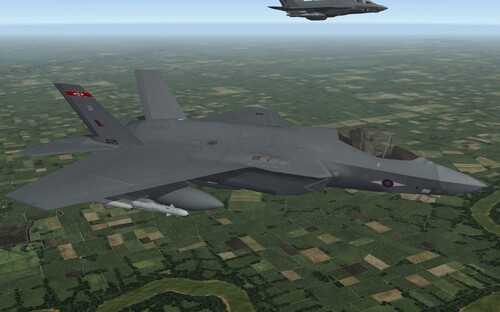
View File Royal Air Force & Royal Navy F-35C Pack for Strike Fighters 2 Royal Air Force & Royal Navy F-35C Pack for Strike Fighters 2 It seems more and more likely the UK will purchase the F-35C so here is my take of the UK version replacing the current GR9 Harrier squadrons. Features: -No. 1 Squadron RAF markings. -No. 4 (Reserve) Squadron RAF markings. -No. 800 Naval Air Squadron markings -Markings for an operational ´Joint Force Lightning´ (JFL) squadron which is a take off ´Joint Force Harrier´ (JFH) -UK weapon load outs including ASRAAM, Meteor, Brimstone, Storm Shadow and an upgraded ALARM missile -Extensive RWR.TGA files and updated RWR.LST -All weapons from load out file included ( most are from MGunny's Ordnance Shop II for SF2 ) INSTILATION: Drop files in to appropriate folders, override when asked to. NOTE: Has only been tested/used in a merged install of ALL SF2 titles Credit: FastCargo & Dave Submitter dtmdragon Submitted 11/23/2010 Category What If Hangar
-
View File Tornado GR4 for Strike Fighters 2 Tornado GR4 for Strike Fighters 2 Features: -Year specific versions to reflect upgrades in weapons capability e.g. Brimstone missiles -Modernized Avionics & loadout - Storm Shadow Air to ground missile included -Modified from the NATO fighters GR1A -Extensive RWR.TGA files and updated RWR.LST -All weapons from load out file included ( most are from MGunny's Ordnance Shop II for SF2 ) INSTILATION: Drop files in to appropriate folders, override when asked to. NOTE: Has only been tested/used in a merged install of ALL SF2 titles Credit: Dave & NF4+ team Submitter dtmdragon Submitted 11/23/2010 Category Tornado
-
View File Polish F-16D updated for Strike Fighters 2 Polish F-16D updated for Strike Fighters 2 Features: -Extensive RWR.TGA files and updated RWR.LST -All weapons from load out file included ( most are from MGunny's Ordnance Shop II for SF2 ) INSTILATION: Drop files in to appropriate folders, override when asked to. NOTE: Has only been tested/used in a merged install of ALL SF2 titles Credit: Diogo Submitter dtmdragon Submitted 11/23/2010 Category F-16
-
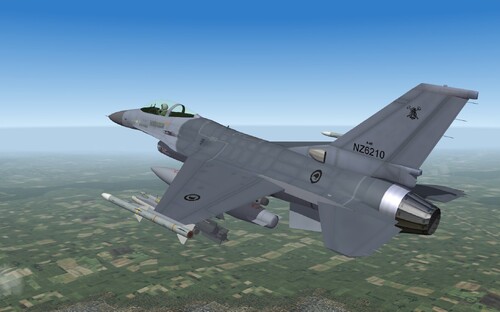
View File Royal New Zealand Force 'what should have been' F-16 Pack for Strike Fighters 2 Royal New Zealand Air Force 'what should have been' F-16 Pack for Strike Fighters 2 This pack represents 'what should have been' if our newly elected Labour Party government hadn't screwed the nation and cacelled the previous governments planed purchase of F-16C fighters in 2001. They would latter axe our Air Force’s entire combat air wing and we are defenceless to this day. Features: -Multiple year specific versions with different load outs for the ´C´ model F-16 which has been renamed the F-16K. -A two seater F-16K/D with conformal fuel tanks. -Extensive RWR.TGA files and updated RWR.LST -All weapons from load out file included ( most are from MGunny's Ordnance Shop II for SF2 ) INSTILATION: Drop files in to appropriate folders, override when asked to. NOTE: Has only been tested/used in a merged install of ALL SF2 titles Credit: Spectre8750, Diogo & Spinners Submitter dtmdragon Submitted 11/23/2010 Category What If Hangar
-
323 downloads
Royal New Zealand Air Force 'what should have been' F-16 Pack for Strike Fighters 2 This pack represents 'what should have been' if our newly elected Labour Party government hadn't screwed the nation and cacelled the previous governments planed purchase of F-16C fighters in 2001. They would latter axe our Air Force’s entire combat air wing and we are defenceless to this day. Features: -Multiple year specific versions with different load outs for the ´C´ model F-16 which has been renamed the F-16K. -A two seater F-16K/D with conformal fuel tanks. -Extensive RWR.TGA files and updated RWR.LST -All weapons from load out file included ( most are from MGunny's Ordnance Shop II for SF2 ) INSTILATION: Drop files in to appropriate folders, override when asked to. NOTE: Has only been tested/used in a merged install of ALL SF2 titles Credit: Spectre8750, Diogo & Spinners -

486 downloads
Polish F-16D updated for Strike Fighters 2 Features: -Extensive RWR.TGA files and updated RWR.LST -All weapons from load out file included ( most are from MGunny's Ordnance Shop II for SF2 ) INSTILATION: Drop files in to appropriate folders, override when asked to. NOTE: Has only been tested/used in a merged install of ALL SF2 titles Credit: Diogo -

1,426 downloads
Tornado GR4 for Strike Fighters 2 Features: -Year specific versions to reflect upgrades in weapons capability e.g. Brimstone missiles -Modernized Avionics & loadout - Storm Shadow Air to ground missile included -Modified from the NATO fighters GR1A -Extensive RWR.TGA files and updated RWR.LST -All weapons from load out file included ( most are from MGunny's Ordnance Shop II for SF2 ) INSTILATION: Drop files in to appropriate folders, override when asked to. NOTE: Has only been tested/used in a merged install of ALL SF2 titles Credit: Dave & NF4+ team -
476 downloads
Royal Air Force & Royal Navy F-35C Pack for Strike Fighters 2 It seems more and more likely the UK will purchase the F-35C so here is my take of the UK version replacing the current GR9 Harrier squadrons. Features: -No. 1 Squadron RAF markings. -No. 4 (Reserve) Squadron RAF markings. -No. 800 Naval Air Squadron markings -Markings for an operational ´Joint Force Lightning´ (JFL) squadron which is a take off ´Joint Force Harrier´ (JFH) -UK weapon load outs including ASRAAM, Meteor, Brimstone, Storm Shadow and an upgraded ALARM missile -Extensive RWR.TGA files and updated RWR.LST -All weapons from load out file included ( most are from MGunny's Ordnance Shop II for SF2 ) INSTILATION: Drop files in to appropriate folders, override when asked to. NOTE: Has only been tested/used in a merged install of ALL SF2 titles Credit: FastCargo & Dave -
333 downloads
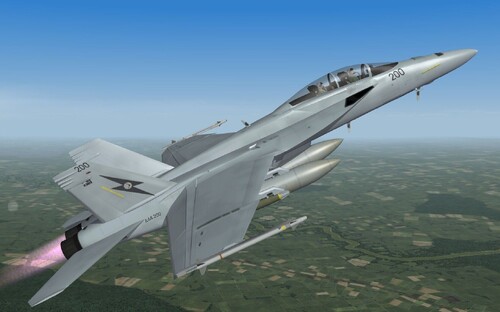
Royal Australian Air Force F/A-18F Super Hornet for Strike Fighters 2 Features: -Extensive RWR.TGA files and updated RWR.LST -All weapons from load out file included ( most are from MGunny's Ordnance Shop II for SF2 ) INSTILATION: Drop files in to appropriate folders, override when asked to. NOTE: Has only been tested/used in a merged install of ALL SF2 titles Credit: EricJ & FastCargo -
372 downloads
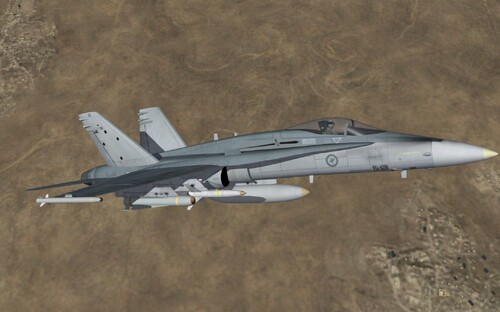
Royal Australian Air Force F/A-18 Hornet for Strike Fighters 2 Features: -Separate Low and High visibility markings. -Year specific versions to represent the major upgrades that added the ASRAAM/AIM-120 missiles and enhanced its smart weapons capability. -Extensive RWR.TGA files and updated RWR.LST -All weapons from load out file included ( most are from MGunny's Ordnance Shop II for SF2 ) INSTILATION: Drop files in to appropriate folders, override when asked to. NOTE: Has only been tested/used in a merged install of ALL SF2 titles Credit: Spectre8750 & Dave -
571 downloads
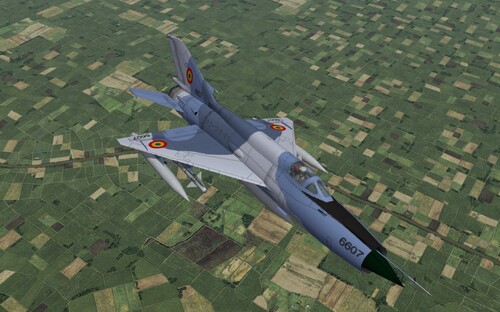
Romanian Air Force Mig-21 LanceR A & C models updated for Strike Fighters 2 Features: -A model LanceR -B model LanceR -Modernized cockpit with HUD & TWS RWR -Correct loadout files with Python 3 missiles, LGBs and LITENING pod -Modernized weapons capability with ability to carry NATO and Israeli ordinance -Modernized Elta EL/M-2032 Air combat radar and avionics -Extensive RWR.TGA files and updated RWR.LST -All weapons from load out file included ( most are from MGunny's Ordnance Shop II for SF2 ) INSTILATION: Drop files in to appropriate folders, override when asked to. NOTE: Has only been tested/used in a merged install of ALL SF2 titles Credit: Eagle99 -
1,022 downloads
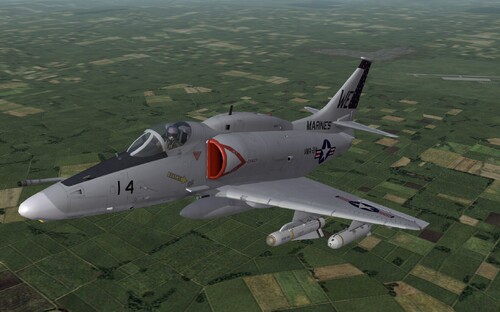
USMC A-4M SkyHawk for Strike Fighters 2 UPDATED 27/01/11 - Landing light added thanks to wilco's mods to my A-4N - minor data.ini updates - Opening canopy 'shift' + '0' UPDATES 19/01/11 - Mach limit extended from the stock figure to one that allows braking of the sound barrier as Skyhawks were known to do in a dive. - Weight limits on the weapon stations changed after I found some reference material with the exact figures of each pylon for the M model not just the total increase over previous models - Low-viz grey skin I released in the SF2 Skins section is now included. Features: -Year specific versions to reflect upgrades in avionics and weapons capability -Modernized cockpit with HUD & Avionics -AN/ASB-19 Angle Rate Bombing System (ARBS) with TV and laser spot tracker -Most advanced and powerful SkyHawk used by the USMC -Extensive RWR.TGA files and updated RWR.LST -All weapons from load out file included ( most are from MGunny's Ordnance Shop II for SF2 ) INSTILATION: Drop files in to appropriate folders, override when asked to. NOTE: Has only been tested/used in a merged install of ALL SF2 titles Credit goes to Third Wire for the original aircraft this has been modified from. -
561 downloads
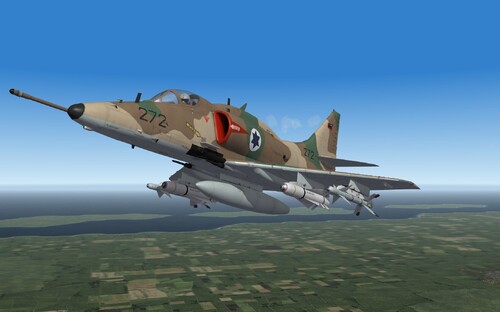
Israeli Air Force A-4N SkyHawk/Ahit for Strike Fighters 2 UPDATED 27/01/11 - Updated with Wilco's mods including; angled refuelling probe, landing light, spoilers and loadout information - minor data.ini updates - Opening canopy 'shift' + '0' UPDATES 19/01/11 - Mach limit extended from the stock figure to one that allows braking of the sound barrier as Skyhawks were known to do in a dive. - Weight limits on the weapon stations changed after I found some reference material with the exact figures of each pylon for the M & N model not just the total increase over previous models Features: -Year specific versions to reflect upgrades in avionics and weapons capability -Modernized cockpit with HUD & Avionics - Python 5 missile included -Extensive RWR.TGA files and updated RWR.LST -All weapons from load out file included ( most are from MGunny's Ordnance Shop II for SF2 ) INSTILATION: Drop files in to appropriate folders, override when asked to. NOTE: Has only been tested/used in a merged install of ALL SF2 titles Credit goes to Third Wire the original aircraftl this has been modified from and Wilco -
690 downloads
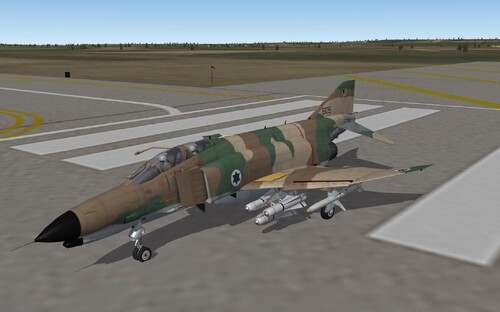
Israeli Air Force F-4E Kurnass 2000 for Strike Fighters 2 Features: -Modernized cockpit and avionics -Modernized weapons capability -Most advanced version of the F-4E used by the Israeli Air Force -Extensive RWR.TGA files and updated RWR.LST -All weapons from load out file included ( most are from MGunny's Ordnance Shop II for SF2 ) INSTILATION: Drop files in to appropriate folders, override when asked to. NOTE: Has only been tested/used in a merged install of ALL SF2 titles Credit goes to Wrench and Third Wire for the original aircraft this has been modified from -

1,081 downloads
Italian AMX for Strike Fighters 2 Upgraded Features: -Year specific versions to reflect the major upgrade of the Italian AMX to give it a modern cockpit/avionics and improved smart weapons such as JDAM -Modernized weapons capability and load out files -Modernized cockpit with MFD and HUD -High and low visibility markings -Extensive RWR.TGA files and updated RWR.LST -All weapons from load out file included ( most are from MGunny's Ordnance Shop II for SF2 ) INSTILATION: Drop files in to appropriate folders, override when asked to. NOTE: Has only been tested/used in a merged install of ALL SF2 titles Credit: pcpilot -
Here is a photo I have found but have no idea what the missiles are? http://www.airliners.net/photo/Romania---A...632a35b0438f570
-
Does anyone have any info on Romanian Mig-21 LanceR operational weapon loadouts? I have photos of Litening pods with LGBs but nothing of air-to-air loads. I am aware they can carry the Python 3, AIM-9 and R-60 etc but what would a common air-to-air weapons load consist of? Cheers, Dan.
-
SF2 expansion 2 teaser and mission editor teaser
dtmdragon replied to DanW's topic in General Discussion
Will the mission editor be combatable with addon/modded aircraft/ground vehicles and terrain? Or will it only work with stock aircraft etc? Cheers, Dan -
Game has intergrated my own A-4N into its stock campaigns! How?
dtmdragon replied to dtmdragon's topic in General Discussion
I thought that might be the case but was unsure as its a bit of a coincidence I named mine exactly the same (eg A-4N_78_Ahit) allowing it to work. Cheers. -
I have been recently modding a copy of the stock A-4H Ahit into an A-4N and to my surprise the game seems to have integrated my A-4N into the stock Israeli campaigns!!??? In the Yom Kippur war my ‘A-4N_Ahit’ is avalible instead of the A-4H_Ahit in some but not all A-4H squadrons. So is my ‘A-4_Ahit_78’ in the 1982 Lebanon War. How has this happened??????? Here is a copy of the UNMODIFIED campaign data I have unpacked to have a look: From 'CAMPAIGNI2_DATA.INI' [AirUnit009] AircraftType=A-4N_Ahit <<<<<<<<<<<<<<<<<<<<<<<<<<<<<<<<<<<<<<<<<<<<<< AlternateType=A-4H_Ahit Squadron=115IDF ForceID=1 Nation=ISRAEL DefaultTexture=IDFCamo1 BaseArea=Tel Nof Airbase BaseMoveChance=0 RandomChance=100 MaxAircraft=16 StartAircraft=16 MaxPilots=16 StartPilots=16 Experience=100 Morale=100 Supply=50 MissionChance[sWEEP]=0 MissionChance[CAP]=0 MissionChance[iNTERCEPT]=0 MissionChance[ESCORT]=0 MissionChance=50 MissionChance[CAS]=90 MissionChance[sEAD]=50 MissionChance[ARMED_RECON]=40 MissionChance[ANTI_SHIP]=10 MissionChance[RECON]=10 UpgradeType=FIXED Upgrade[01].Date=10/20/1973 Upgrade[01].Type=A-4H_Ahit_73 Upgrade[01].Texture=IDFCamo1 From 'CAMPAIGNI2.INI' [israelUnit008] Squadron=115IDF ForceID=1 UnitID=9 StartDate=10/06/1973 AircraftType=A-4N_Ahit <<<<<<<<<<<<<<<<<<<<<<<<<<<<<<<<<<<<<<<<<<<<<< AlternateType=A-4H_Ahit DescFile=woi2Start.txt StartText=woi2Start.txt