
Stephen1918
-
Posts
1,204 -
Joined
-
Last visited
-
Days Won
19
Content Type
Profiles
Forums
Gallery
Downloads
Store
Everything posted by Stephen1918
-
I agree with everything ojcar said. I would also point out that if there was an all inclusive download, it would be so big that you would spend a long time downloading, and then you would still have to install all the parts in the correct folders, so it wouldn't be very much easier. Also, if you don't have all the skins, the game will substitute the default skin. So concentrate on getting the planes installed first. You don't have to wait until everything is installed, you can start flying campaign missions as soon as you get most of the planes. I does take some practice, but like ojcar said, it gets easier as you do it.
-
Excellent! Thank you for this Ojcar!
-
I will do the SPAD 16 after this one is finished. The planes are so similar it seems like the logical thing to do. It will take some time because the real world is very busy for me lately.
-
Certainly. I'd like to see what you make. I don't really like doing the skins, I always include my templates in the hope that someone will make better ones.
-
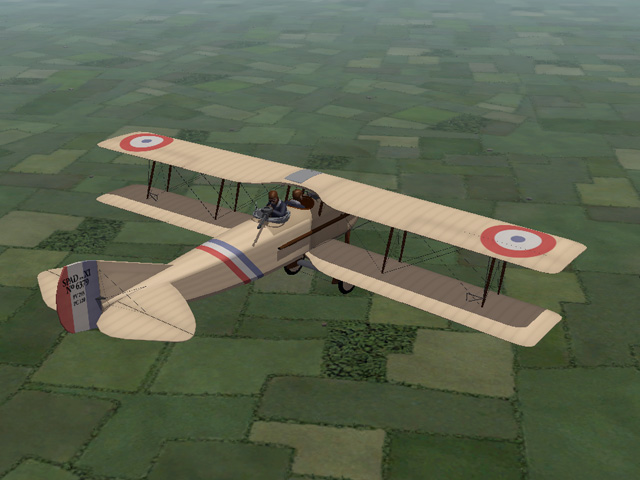
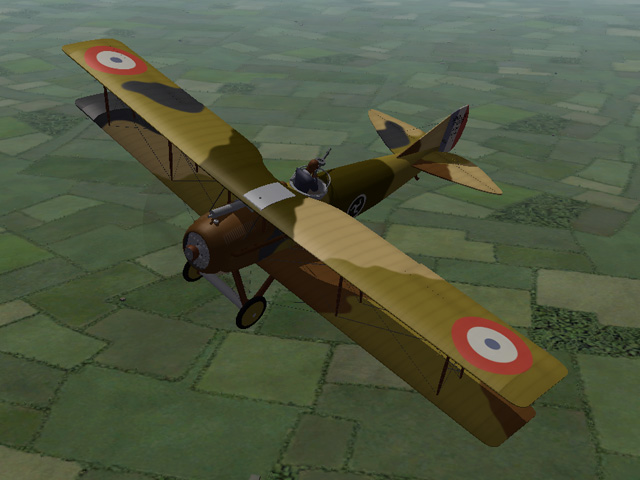
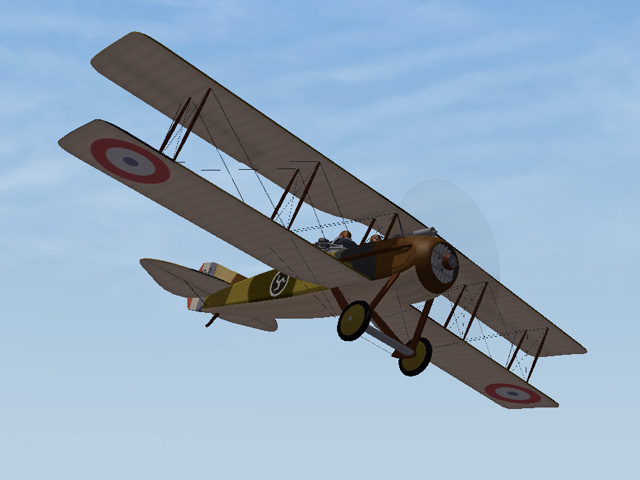
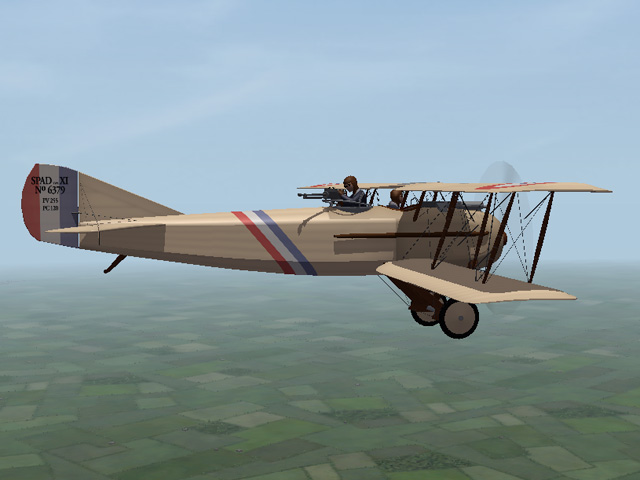
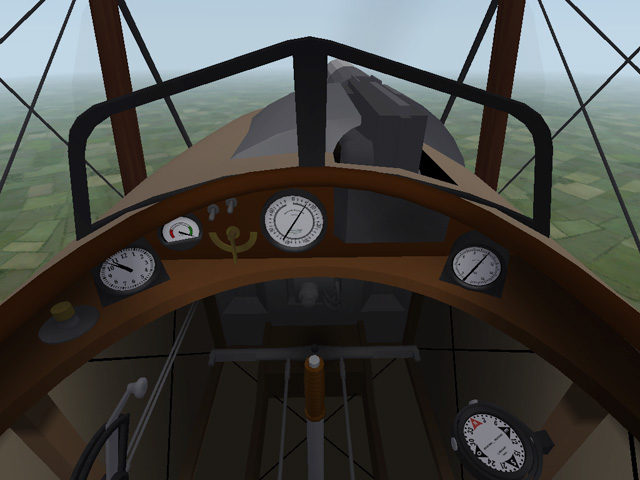
Back in July, Capitaine Vengeur asked for a SPAD two seater. I've been working on a SPAD 11, off and on, for about six weeks. The model is pretty much done, I'm working on the skins and decals now. The cockpit is coming together, but still needs a lot of work.
-
I understand, I thought you were talking about the serial numbers for the D.IIa
-
I am not offended, it is not insulting to be corrected when I am wrong. It might not make me happy, but I don't blame you for that. If you have made the corrections, would you like to upload them so we can all share them?
-
Good idea Crowford. There are other modders around. If anybody wants to step in to make these improvements, I would be pleased.
-
Well guys, it is what it is. There is room for future improvement, but for now, please just accept it as it is.
-
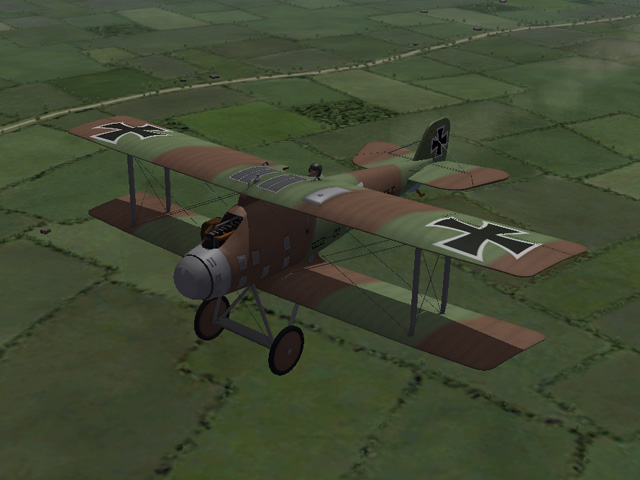
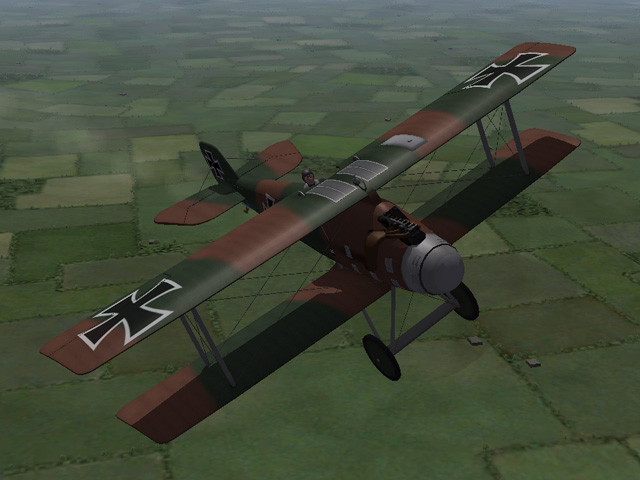
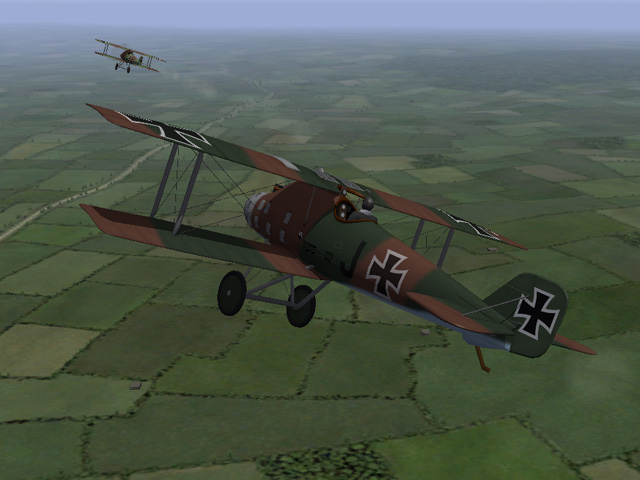
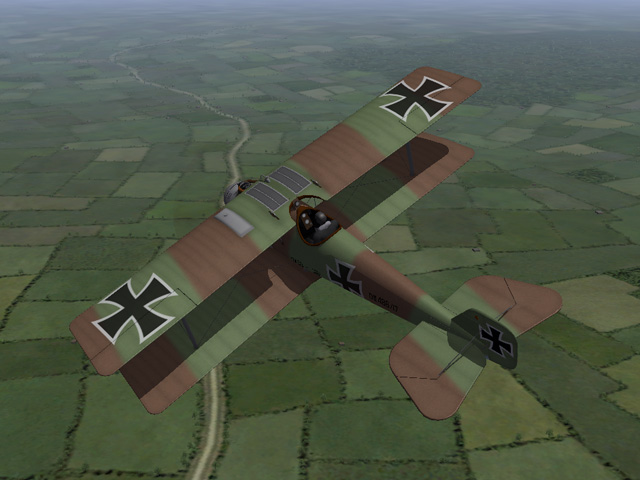
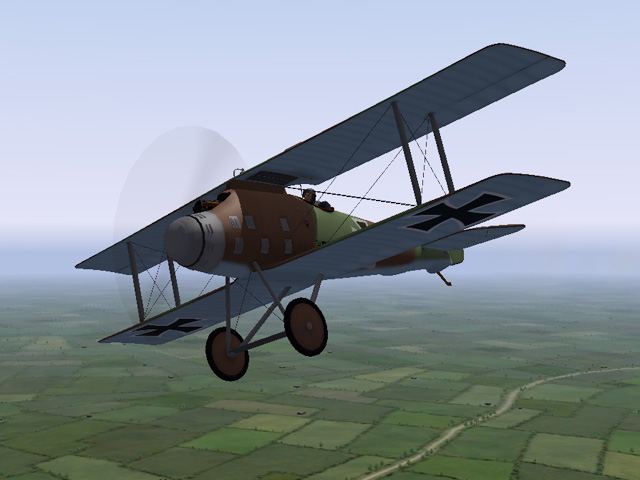
The Roland D.IIa has been uploaded. It's very similar to the D.II, but I put in a new engine, stretched the nose a little, and moved the landing gear. I included two new skins, a set of serial numbers, and decal sets for both the LFG and Pfalz versions. I used the stock insignia for both, but in real life the LFG insignia were a little fatter. My thanks to ojcar for making the FM for the Roland D.IIa.
-
View File LFG Roland D.IIa The Roland D.IIa was nearly identical to the D.II, but had a more powerful engine. The 180HP Argus As.III engine increased the plane's speed and maneuverability, but because it was a low compression engine, it started to lose power at higher altitudes. Like the D.II, the D.IIa was quickly replaced on the Western Front, but served until the end of the war on the Eastern and Macedonian Fronts. The skins for the Roland D.IIa are nearly identical to the skins for the D.II, but there are some changes to the engine. If you swap skins, you may see some minor stretching on some of the engine components and around the nose of the plane. I have included two new skins, a light green and brown camo, and a dark green and brown camo. I have also included a full set of number decals appropriate for the D.IIa. My skinning templates are included in the download. I didn't have a sound file for the Argus 180hp engine, so I used the sound for the Mercedes 180hp instead. Credits Thanks to Ojcar for making the data file for the Roland D.IIa. Thanks also to Nix, who made the sound file for the Mercedes 180hp engine. Installation Instructions Note - The engine sound file has been used in several other planes. If you already have a file with the same name in your Sounds folder, then you don't need to install mine. For FE1 - Unzip the file and move the folder named "RolandD2a" into your FirstEagles/Objects/Aircraft folder. If you don't already have it, you will also need to move the sound file "mercedes180m1.wav" into the FirstEagles/Sounds folder. For FE2 - Unzip the file and move the folder named "RolandD2a" into the FirstEagles/Objects/Aircraft folder. Then in the FirstEagles/Objects/Decals folder, create a new folder named "RolandD2a". Move the folder named "D" from the Aircraft/RolandD2a folder into the Decals/RolandD2a folder you just made. If you don't already have it, you will also need to move the sound file "mercedes180m1.wav" into the FirstEagles/Sounds folder. Submitter Stephen1918 Submitted 10/04/2015 Category Other Central Powers Aircraft
-
Version v1.1
269 downloads
The Roland D.IIa was nearly identical to the D.II, but had a more powerful engine. The 180HP Argus As.III engine increased the plane's speed and maneuverability, but because it was a low compression engine, it started to lose power at higher altitudes. Like the D.II, the D.IIa was quickly replaced on the Western Front, but served until the end of the war on the Eastern and Macedonian Fronts. The skins for the Roland D.IIa are nearly identical to the skins for the D.II, but there are some changes to the engine. If you swap skins, you may see some minor stretching on some of the engine components and around the nose of the plane. I have included two new skins, a light green and brown camo, and a dark green and brown camo. I have also included a full set of number decals appropriate for the D.IIa. My skinning templates are included in the download. I didn't have a sound file for the Argus 180hp engine, so I used the sound for the Mercedes 180hp instead. Credits Thanks to Ojcar for making the data file for the Roland D.IIa. Thanks also to Nix, who made the sound file for the Mercedes 180hp engine. Installation Instructions Note - The engine sound file has been used in several other planes. If you already have a file with the same name in your Sounds folder, then you don't need to install mine. For FE1 - Unzip the file and move the folder named "RolandD2a" into your FirstEagles/Objects/Aircraft folder. If you don't already have it, you will also need to move the sound file "mercedes180m1.wav" into the FirstEagles/Sounds folder. For FE2 - Unzip the file and move the folder named "RolandD2a" into the FirstEagles/Objects/Aircraft folder. Then in the FirstEagles/Objects/Decals folder, create a new folder named "RolandD2a". Move the folder named "D" from the Aircraft/RolandD2a folder into the Decals/RolandD2a folder you just made. If you don't already have it, you will also need to move the sound file "mercedes180m1.wav" into the FirstEagles/Sounds folder. -
Nice!
-
-
Thanks to Quack74 for coming up with the idea.
-
Yep. The SPAD XI is coming after the Roland DIIa. The SPAD XI model is mostly done, I'm finishing the cockpit and doing the skins. The SPAD XVI had a bigger engine than the XI, and they but valve covers outside the fuselage, making the bumps like you see in the SPAD XIII. The XI didn't have them. It shouldn't be too much extra work to make the XVI too.
-
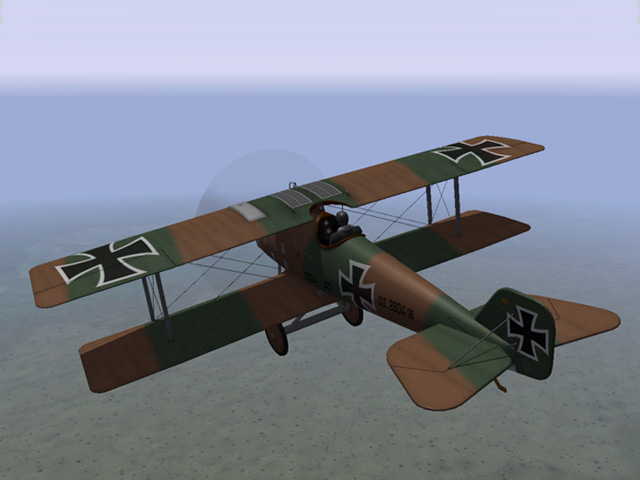
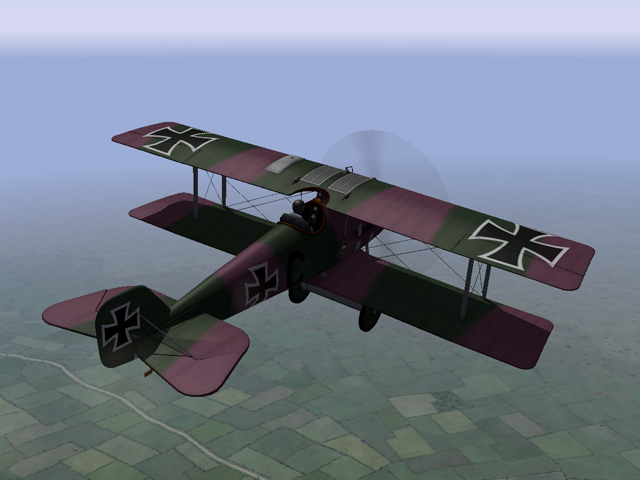
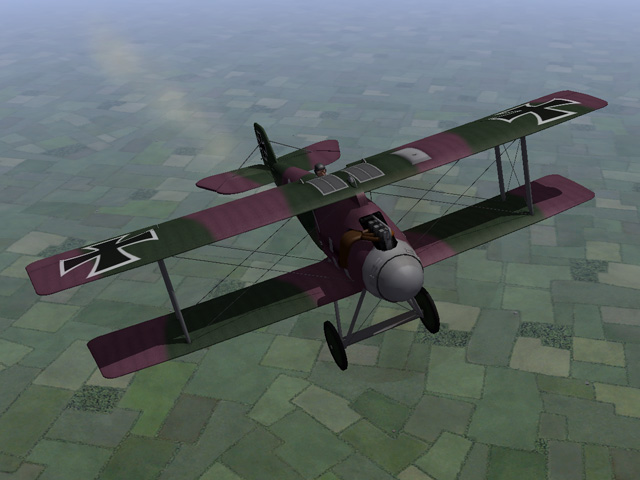
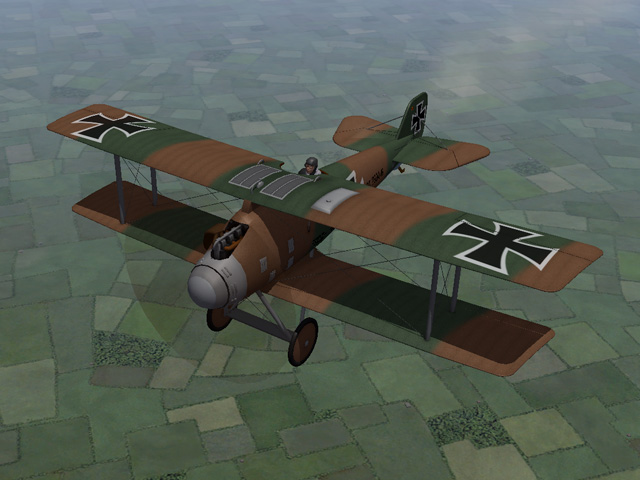
I have uploaded Version 3 of the Roland D.II - with corrected aileron controls, corrected decal sets for LFG and Pfalz versions, corrected tail and rudder details. My thanks to Crowford for all his help getting this right, and for Beta-testing version 3. If we find any other problems, let's just pretend they're field mods...
-
Yes! I will try to get Version 3 uploaded tomorrow. Thanks for all your help.
-
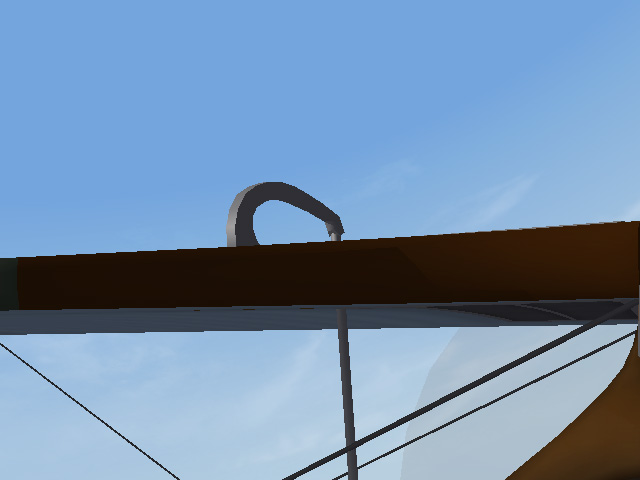
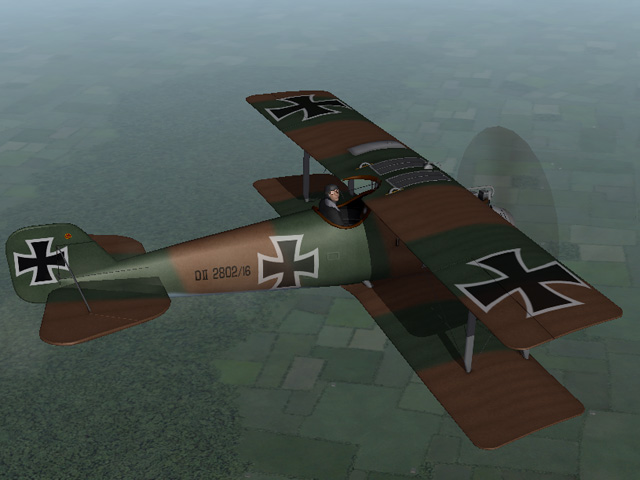
I found an illustration of the aileron control for the Roland C.II. Not exactly the same as the D.II, but at least I understood how it worked. That and the other photos Crowford posted brought me to this. The screen shot shows the aileron mechanism at full extension during a hard right roll. The decals and tail support were easy fixes.
-
Crowford, thank you for your comments. Sometimes when a person is very familiar with a subject, they notice things that others don't see. I need to study the aileron controls on the Roland some more because I don't see what you're seeing.
-
These are beautiful. I can imagine flying over a town filled with detail like this. The aqueduct is a nice touch. Are you planning to use these in Spain?
-
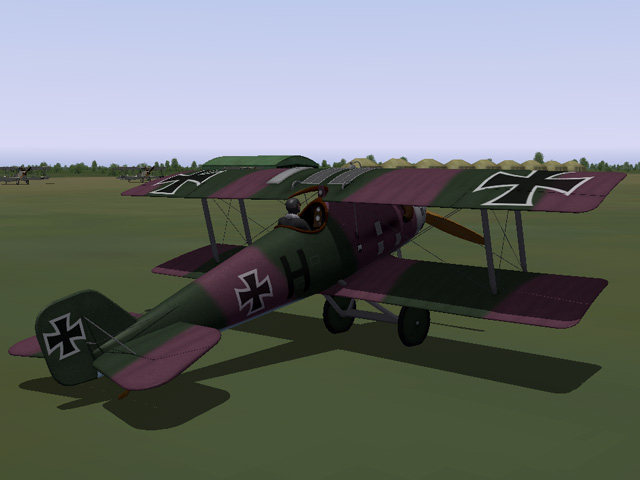
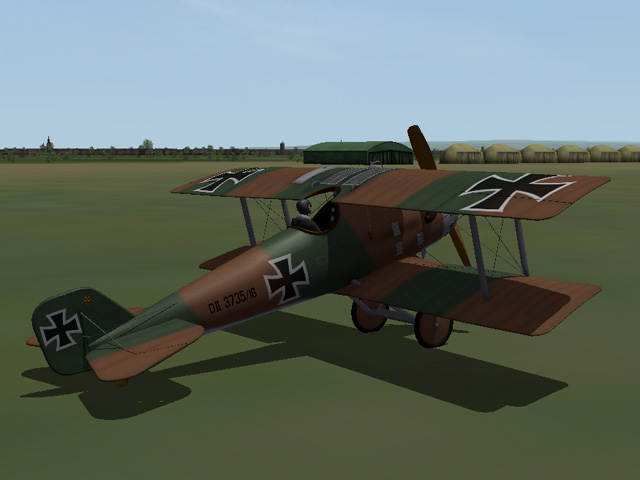
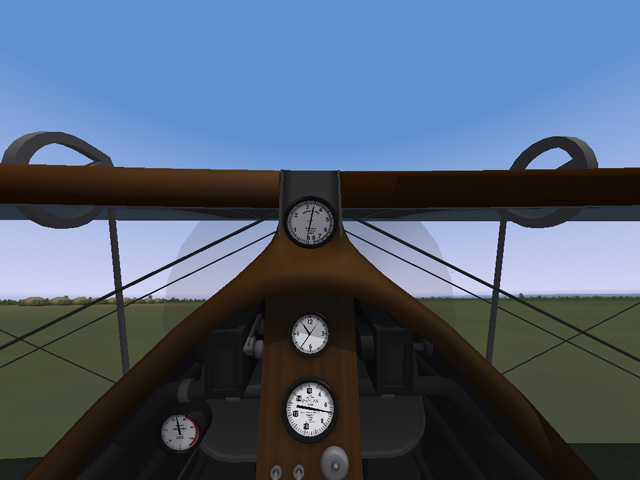
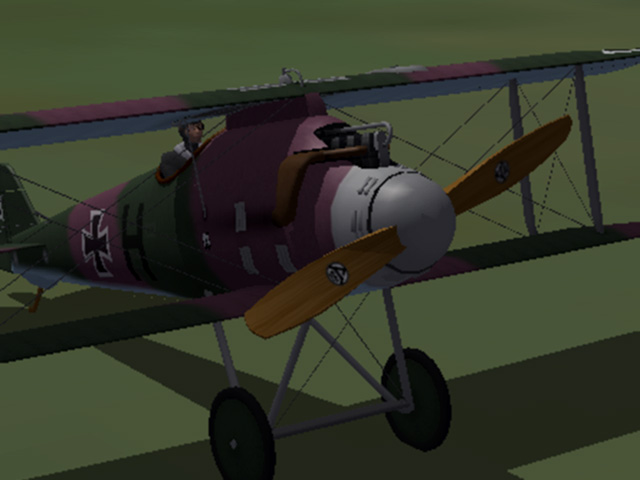
I have uploaded a revised Roland D.II. I exaggerated the motion of the aileron controls as much as I dared. It's an improvement, but still hard to notice if you're not looking for it. I also made different decal sets for the Pfalz and LFG versions of the plane. Both versions use the standard insignia, but in real life they were a little different. I added an animation to the machine guns in the cockpit. Now you can at least tell if they're firing, since you can't see them otherwise. I also made some minor tweaks to the skins and model, since I was at it anyway. The DIIa will take a while because I'll have to reskin the fuselage after the changes are made. I also have a SPAD 11 started which I want to get back to.
-
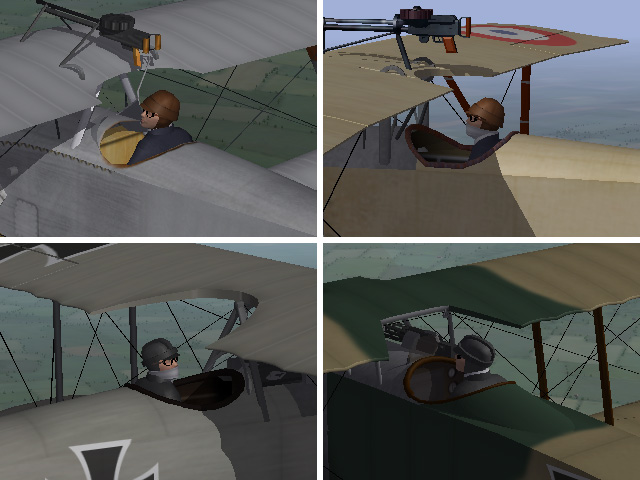
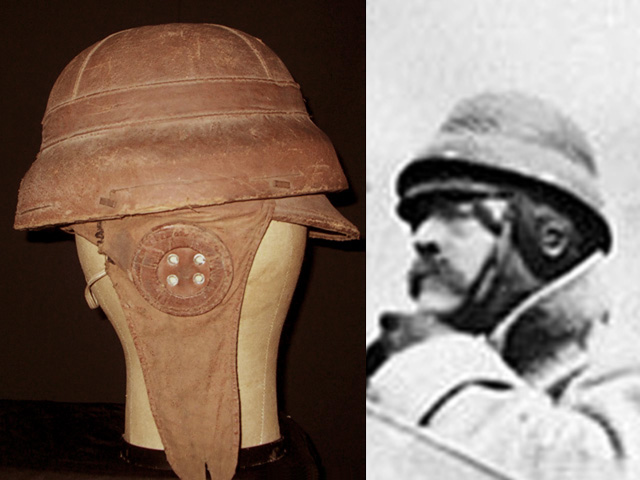
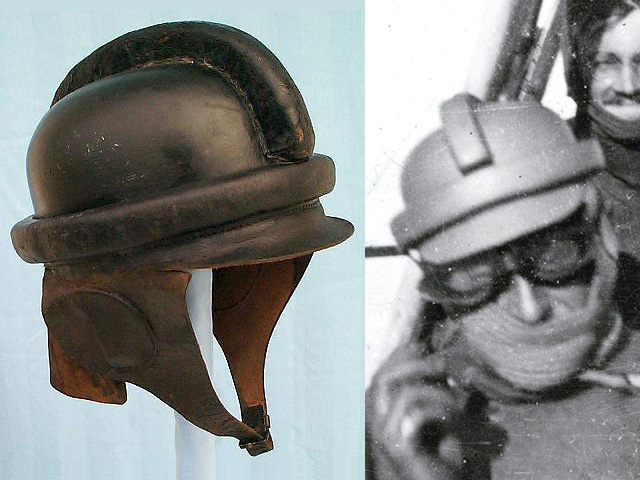
Quack74 asked me to make some pilots wearing World War I style crash helmets. I made a French style and a German style, and made some with scarves over their face, a total of four new pilots for First Eagles. After they are installed in the game, you'll need to change the data.ini to get them in your plane. Instructions are included in the download. My models don't have feet, so they will fit into Laton's Eindeckers and Morane-Saulniers pretty well, but you may need to adjust the position a little for planes that use the old style pilots. I put them in the Cockpits category of the Downloads section, because it seemed like the logical place. My thanks to quack74 for inspiration and beta-testing.
-
View File Pilots with Helmets for First Eagles Some flyers wore simple crash helmets in WWI, especially recon and bomber crews where they would have to move around during the flight. These helmets were made of heavy leather with cork inserts. They didn't offer much protection by today's standards, but they were better than nothing. I have made new pilots with French style and German style helmets. Each style includes a version with a scarf over the lower face, making four new pilots for First Eagles. You will need to install the pilots into the game, then make a change to the data.ini for each plane to make them appear in the game. The center point matches the center point of the (new) FE2 stock pilot, so they should swap into your plane without any adjustment. If the plane uses the old style FE1 pilot, some minor tweaking may be required. My thanks to Quack74 for suggesting the idea and for beta-testing. Installing the pilots into the game: For FE1 - Open my folder named "FE1" and copy all six files into your "Aircraft" folder. Don't put them into any of the other folder. The LOD names are the names of the new pilot. For FE2 - Open my folder named "FE2" and copy all four folders into your Objects/Pilots folder. The folder names are the names of the new pilot. Putting the pilots into a plane: For both FE1 and FE2 - Open the plane's data.ini file. Find the section for crew (about 1/2 to 3/4 of the way down). Change the PilotModelName to the name of one of the new pilots. Save the file and fly. (You might want to comment out the original name and type in a new line, like in my example, in case you want to change back.) Example: // Crew --------------------------------------------------------- [Pilot] SystemType=PILOT_COCKPIT //PilotModelName=wwiPilotNew2 <--old pilot name PilotModelName=FrHelmetPilot <--new pilot name PilotHeadNodeName=head Position=0.0,-0.82,0.75 MinExtentPosition=-0.30,-0.93,-0.36 MaxExtentPosition= 0.30,-0.24,0.83 Submitter Stephen1918 Submitted 09/26/2015 Category First Eagles - WWI and Early Years - Add On Cockpits
-
147 downloads
Some flyers wore simple crash helmets in WWI, especially recon and bomber crews where they would have to move around during the flight. These helmets were made of heavy leather with cork inserts. They didn't offer much protection by today's standards, but they were better than nothing. I have made new pilots with French style and German style helmets. Each style includes a version with a scarf over the lower face, making four new pilots for First Eagles. You will need to install the pilots into the game, then make a change to the data.ini for each plane to make them appear in the game. The center point matches the center point of the (new) FE2 stock pilot, so they should swap into your plane without any adjustment. If the plane uses the old style FE1 pilot, some minor tweaking may be required. My thanks to Quack74 for suggesting the idea and for beta-testing. Installing the pilots into the game: For FE1 - Open my folder named "FE1" and copy all six files into your "Aircraft" folder. Don't put them into any of the other folder. The LOD names are the names of the new pilot. For FE2 - Open my folder named "FE2" and copy all four folders into your Objects/Pilots folder. The folder names are the names of the new pilot. Putting the pilots into a plane: For both FE1 and FE2 - Open the plane's data.ini file. Find the section for crew (about 1/2 to 3/4 of the way down). Change the PilotModelName to the name of one of the new pilots. Save the file and fly. (You might want to comment out the original name and type in a new line, like in my example, in case you want to change back.) Example: // Crew --------------------------------------------------------- [Pilot] SystemType=PILOT_COCKPIT //PilotModelName=wwiPilotNew2 <--old pilot name PilotModelName=FrHelmetPilot <--new pilot name PilotHeadNodeName=head Position=0.0,-0.82,0.75 MinExtentPosition=-0.30,-0.93,-0.36 MaxExtentPosition= 0.30,-0.24,0.83