

Fubar512
-
Posts
8,418 -
Joined
-
Last visited
-
Days Won
42
Content Type
Profiles
Forums
Gallery
Downloads
Store
Everything posted by Fubar512
-
CTD at beginning of mission- WOE vista 64 ultimate
Fubar512 replied to Icarus999's topic in General Discussion
Try forcing WoE to run in WindowsXP SP2 compatibility mode. -
http://apnews.myway.com/article/20080623/D91FMOEO0.html Wow, It seems like I saw him on an HBO specual, just yesterday (it was in April). He will be missed
-
It's there. just hit the "F5" key to refresh explorer, and you should see it.
-
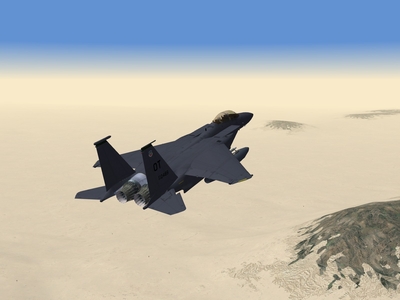
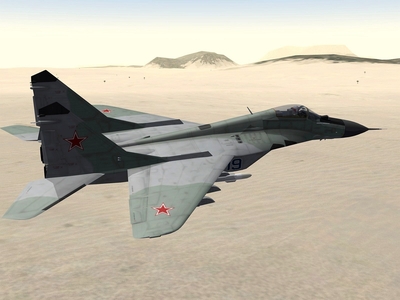
The '29A is a new model by the Mirage Factory, thanks to the efforts of Flying Toaster and Paladrian (3d model & cockpit). The Sea Flanker is Marcelo's model. Both are works in progress, awaiting the release of SP5 for SF/WoV, and WoE. This is being done so as to eliminate the need to create two sets of flight models.
-
-
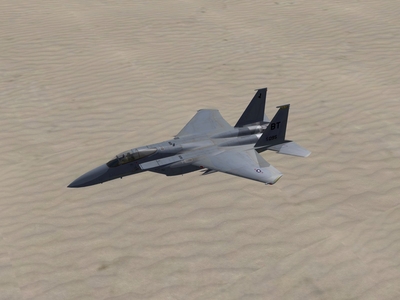
Just looking for opinions here, which effect do you prefer? #1 or, #2?
-
-

-
If those two SAM radars are of the same network type (say, SA-2 or SA-3), then yes, they will interact and either of them can and will guide a SAM if the target is within the SAM's engagement envelope. This is quite evident when dealing with a terrain that has only one SAM-type, such as WoV's "VietnamSEA".
-
Thanks, The description page has been updated
-
Warlord, Thank you for pointing that out, and for providing a solution. Despite spending 5+ years mucking around with Third Wire sims, I wasn't even aware that easy avionics defaulted to it's own ini file! Would you mind if I added this to the file's "description" page (crediting you, of course)?
-
And on that note, I bring you the latest video from "Nah Nah Nah Nah" productions, TeaserVid1!!!! Rejoice!!!! http://forum.combatace.com/uploads/1213532..._43_1355960.wmv
-
-
-
Not too many of them....
-
-
Install Pasko's SAM Pack and Bunyap's weapon pack, and you'll have SA-3s, SA-8s, and SA-9s to deal with, as well as a Chaparral. Might as well grab Fast Cargo's SA-5, while you're at it. Bonus Tip: Edit the GroundObjectRole of the SA-8, 9, and Chaparral to read "Mobile_AAA", instead of "Mobile_SAM". and the nasty little buggers will be everywhere.
-
Simply placing stuff randomly will not help, either. Sa-2/3/5/6 & Hawks need to arrayed in a battery arround their search and acquistion radars. Peruse the terrain_targets.ini from your default terrain, and find an existing SA-2 battery. Copy the offsets for the various launchers and supporting radar(s), then set up the SAM batteries on the terrain of your choice using that layout.
-
Why not edit the mission so it uses the carrier you downloaded?
-
550 downloads
RWR Symbology and Sounds for Third Wire Sims by: Fubar512 crash test dummies: Jarhead1 and USAFMTL "Dave" NOTE, these are not totally representitive of the RWR symbology that one might find in real combat aircraft. They are meant to make it somewhat easier to identify threat type (ground or airborne), and threat level (search, track, lock), for ease of game play. The symbols are set up as follows: S = ground based search radar Diamond with "T"=ground based radar in track mode Diamond with 'L"=ground based radar in acquisition mode Inverted 'V" with "S" below it=Airborne search radar Inverted 'V" with "T" below it=Airborne radar in track mode Inverted "V" with "L" below it=Airborne radar in acquisition mode The colored icons further help identify threat modes, as follows Green =Search Mode Yellow =Track Mode Red = Acquisition mode Instructions: Copy the RWR sub-folder of your choice (Green or Colored) and its contents into the aircraft's cockpit folder. The aircraft must have an RWR display to begin with, of course! Next, you must edit the following entries in that aircraft's avionics.ini to denote the path to the RWR symbol. (Please note that In the case of TW default aircraft, you will have to extract the avionics.ini from the objectdata.cat file, and place it in the aircraft's folder in order to edit it. You must download and use the SFP1E extraction utilty in order to do so.) [RWR] Type=3_RING AirSearchTexture=Cockpit/RWR/AirSearch.tga<---Note path statement AirTrackTexture=Cockpit/RWR/AirTrack.tga<---Note path statement AirLockTexture=Cockpit/RWR/AirLock.tga<---Note path statement GroundSearchTexture=Cockpit/RWR/SurfaceSearch.tga<---Note path statement GroundTrackTexture=Cockpit/RWR/SurfaceTrack.tga<---Note path statement GroundLockTexture=Cockpit/RWR/SurfaceLock.tga<---Note path statement SearchPosition=0.90 TrackPosition=0.55 LockPosition=0.15 SearchSize=0.125<---adjust size to fit RWR display TrackSize=0.125<---adjust size to fit RWR display LockSize=0.125<---adjust size to fit RWR display SearchFlash=FALSE TrackFlash=TRUE TrackFlashRate=0.5 LockFlash=TRUE LockFlashRate=0.1 TrackSound=RWRTrack2.wav<----Sounds (optional) LockSound=LaunchWarn.wav<----Sounds (optional) Note the path statement in the Texture statement. This must be followed or the model will default to using the standard texures (icons). The Size statement is a variable that must be set by the user. I find that a size value of 0.125 is perfect for the F-15 series, and a size of 0.20 works well with the F-14, F-16, and F-18's display. You may need to experiment. Last, but not least, RWR sounds. I've included two extremely annoying ones for your enjoyment. You can use whatever sounds you want, by simply placing said sounds in the "Sounds" folder, and setting the statement as noted above. Note that sounds must always be monoaural .wav format. MP3 files, and stereo .wavs will not work in any TW sim. I've included a modified avionics.ini for the default Thirwire F-15A, as found in WoE and WoI, to help you understand what's involved, and to allow those of you who already have those sims to get up and running right away. USING THIS MOD UNDER "EASY AVIONICS" by: WarlordATF Now, When i installed it, It didn't work. I re-checked everything,re-read the readme and everything was done exactly right. But, I use Easy Avionics! Its simple to fix and i just wanted to provide instructions on how to make it work with Easy mode. All you have to do is... Copy the new TGAs, not the RWR folder, Just the new TGAs to your Flight folder and extract the EASYAVIONICSDATA.INI from the Flightdata.cat and edit it like this... [RWR] Type=3_RING AirSearchTexture=AirSearch.tga AirTrackTexture=AirTrack.tga AirLockTexture=AirLock.tga GroundSearchTexture=SurfaceSearch.tga GroundTrackTexture=SurfaceTrack.tga GroundLockTexture=SurfaceLock.tga SearchPosition=0.90 TrackPosition=0.55 LockPosition=0.15 SearchSize=0.15<---Set Size to your preference TrackSize=0.15<---Set Size to your preference LockSize=0.15<---Set Size to your preference SearchFlash=FALSE TrackFlash=TRUE TrackFlashRate=0.2 LockFlash=TRUE LockFlashRate=0.1 TrackSound=RWRTrackSound.wav LockSound=RWRLockSound.wav And your done, this will give you a fully functional RWR and All RWRs will use the new symbols! -
RWR Symbology View File RWR Symbology and Sounds for Third Wire Sims by: Fubar512 crash test dummies: Jarhead1 and USAFMTL "Dave" NOTE, these are not totally representitive of the RWR symbology that one might find in real combat aircraft. They are meant to make it somewhat easier to identify threat type (ground or airborne), and threat level (search, track, lock), for ease of game play. The symbols are set up as follows: S = ground based search radar Diamond with "T"=ground based radar in track mode Diamond with 'L"=ground based radar in acquisition mode Inverted 'V" with "S" below it=Airborne search radar Inverted 'V" with "T" below it=Airborne radar in track mode Inverted "V" with "L" below it=Airborne radar in acquisition mode The colored icons further help identify threat modes, as follows Green =Search Mode Yellow =Track Mode Red = Acquisition mode Instructions: Copy the RWR sub-folder of your choice (Green or Colored) and its contents into the aircraft's cockpit folder. The aircraft must have an RWR display to begin with, of course! Next, you must edit the following entries in that aircraft's avionics.ini to denote the path to the RWR symbol. (Please note that In the case of TW default aircraft, you will have to extract the avionics.ini from the objectdata.cat file, and place it in the aircraft's folder in order to edit it. You must download and use the SFP1E extraction utilty in order to do so.) [RWR] Type=3_RING AirSearchTexture=Cockpit/RWR/AirSearch.tga<---Note path statement AirTrackTexture=Cockpit/RWR/AirTrack.tga<---Note path statement AirLockTexture=Cockpit/RWR/AirLock.tga<---Note path statement GroundSearchTexture=Cockpit/RWR/SurfaceSearch.tga<---Note path statement GroundTrackTexture=Cockpit/RWR/SurfaceTrack.tga<---Note path statement GroundLockTexture=Cockpit/RWR/SurfaceLock.tga<---Note path statement SearchPosition=0.90 TrackPosition=0.55 LockPosition=0.15 SearchSize=0.125<---adjust size to fit RWR display TrackSize=0.125<---adjust size to fit RWR display LockSize=0.125<---adjust size to fit RWR display SearchFlash=FALSE TrackFlash=TRUE TrackFlashRate=0.5 LockFlash=TRUE LockFlashRate=0.1 TrackSound=RWRTrack2.wav<----Sounds (optional) LockSound=LaunchWarn.wav<----Sounds (optional) Note the path statement in the Texture statement. This must be followed or the model will default to using the standard texures (icons). The Size statement is a variable that must be set by the user. I find that a size value of 0.125 is perfect for the F-15 series, and a size of 0.20 works well with the F-14, F-16, and F-18's display. You may need to experiment. Last, but not least, RWR sounds. I've included two extremely annoying ones for your enjoyment. You can use whatever sounds you want, by simply placing said sounds in the "Sounds" folder, and setting the statement as noted above. Note that sounds must always be monoaural .wav format. MP3 files, and stereo .wavs will not work in any TW sim. I've included a modified avionics.ini for the default Thirwire F-15A, as found in WoE and WoI, to help you understand what's involved, and to allow those of you who already have those sims to get up and running right away. USING THIS MOD UNDER "EASY AVIONICS" by: WarlordATF Now, When i installed it, It didn't work. I re-checked everything,re-read the readme and everything was done exactly right. But, I use Easy Avionics! Its simple to fix and i just wanted to provide instructions on how to make it work with Easy mode. All you have to do is... Copy the new TGAs, not the RWR folder, Just the new TGAs to your Flight folder and extract the EASYAVIONICSDATA.INI from the Flightdata.cat and edit it like this... [RWR] Type=3_RING AirSearchTexture=AirSearch.tga AirTrackTexture=AirTrack.tga AirLockTexture=AirLock.tga GroundSearchTexture=SurfaceSearch.tga GroundTrackTexture=SurfaceTrack.tga GroundLockTexture=SurfaceLock.tga SearchPosition=0.90 TrackPosition=0.55 LockPosition=0.15 SearchSize=0.15<---Set Size to your preference TrackSize=0.15<---Set Size to your preference LockSize=0.15<---Set Size to your preference SearchFlash=FALSE TrackFlash=TRUE TrackFlashRate=0.2 LockFlash=TRUE LockFlashRate=0.1 TrackSound=RWRTrackSound.wav LockSound=RWRLockSound.wav And your done, this will give you a fully functional RWR and All RWRs will use the new symbols! Submitter Fubar512 Submitted 06/15/2008 Category Jet Cockpits
- 1 reply
-
- 1
-

-
OK, I've uploaded it. You can find it here: http://forum.combatace.com/index.php?autoc...;showfile=6838#
-
At the request of several members, I'm pitting together a package of RWR icons and sound effects. I will have two versions available, one with colored icons, as used on the latest displays, and one with the standard green icons. The icons denote whether a threat is ground-based or airborne, and what mode the threat is in (search, track, lock). In the colored version, green = search, yellow = track, red = lock. Unfortunately, limitations in the game engine prevent us from simulating actual RWR operation, meaning that we currently cannot identify threats by individual type (ie, MiG-23, SA-6, etc.). Anyway, here's a video, using the "colored" icons: http://forum.combatace.com/uploads/1213532..._43_1195898.wmv
-
-
The image below (from the F-15's RWR), shows all ground threat icons, with all but one in "search" mode. The ground threat nearest the center of the display has gone to "lock" mode, providing guidance for its weapons stem. The image below shows mixed ground-based and airborne threats. In addition to ground-based search radars, you'll see two airborne search radars (represented by the inverted bat-wing, or 'V" shapes), at the periphery of the display. One is at the 8:30 position, the other at 12:30. At the 11 o'clock position, an airborne radar has gone into "track" mode.