
Wrench
-
Posts
27,739 -
Joined
-
Last visited
-
Days Won
156
Content Type
Profiles
Forums
Gallery
Downloads
Store
Everything posted by Wrench
-
TO LOWER THE ALTITUDE OF CLOUDS IN SF2 by pagsab - Read the full thread at https://combatace.com/forums/topic/97376-clouds-altitude-hack/ to understand the potential and side-effects of Stary’s ingenious tweak. - Save the ENVCLOUDS.FX file from Stary’s opening post of the thread. - Navigate to your Flight folder, which should be in – [your name] – Saved Games – Third Wire – [the name of the version you are playing]. - Open the Flight folder, and paste a copy of Stary’s file there. - Open the file with Notepad, scroll down to the Vertex Shader section, and find the active line of code (without the preceding //) in which Stary inserts a deduction of 1900. If desired, you may increase his deduction to make clouds even lower over flat terrain, or reduce it to keep the cloud base above hilly terrain. Deductions from 1000 to 3000 should work. - Close the file, and agree to save any change you have made. - Start the sim and press Single Mission – Create Mission to test the results. Select Scattered or Broken clouds (the only ones affected), and note that modifying cloud height in the mission editor has little if any effect. - Accept and Fly the mission, and climb up to see the results. The change should affect Scattered or Broken clouds in all missions including saved and Campaign missions, and can be tweaked by exiting the sim and amending Stary’s deduction or removing his file before restarting the game. Stary’s tweak does not work in a few terrains such as EuroWW2, apparently because they contain higher mountains than normal. If you wish to lower the clouds for missions over flatter parts of the terrain, you will need to cut the mountains temporarily down to size. - First, read the full thread at https://combatace.com/forums/topic/80880-te-question-height-map-to-hfd/, especially Baltika’s helpful comments on using the Third Wire terrain editor for height map editing. - Download the terrain editor from http://www.thirdwire.com/downloads_tools.htm, and extract the zipped files to a folder in a location of your choice. - Open the folder, and open the TerrainEditor.ini file with Notepad. Check that the HeightScales for BitmapExport and BitmapImport are set at the default 10. Close the file and accept any change that was required. - Double click on TerrainEditor.exe to start the program. - In the File menu of the resulting window, click on Open, and browse to the folder of the terrain concerned, which should be in Desktop – [your name] – Saved Games – Third Wire – [the name of the version you are playing] – Terrains. - Select the terrain folder (such as EuroWW2) without opening it, and click on Open at the bottom of the program window. This should create a window showing any sub-folders within the folder, and any HFD files in the folder (such as EuroWW2.HFD). HFD files whose name does not exactly match the name of the Terrain folder will not be opened by the Editor, so if need be you will have to rename the file before continuing. -Select the HFD file without opening it, and click again on Open at the bottom of the program window. In the View menu, select View Height Field and select a zoom level of 100%. If all is well, you should now see a coloured square map showing the terrain. - Move your cursor across the map, and note how the height of each point is displayed at the bottom right of the program window. - In the File menu, click on Export Height Map as Bitmap. Change the save location to your desktop, and choose a file name such as EuroWW2mod.bmp. Press Save to export the bitmap. - Minimize the Editor window if need be, right click on the saved bitmap, and select Properties – Details to find its size in pixels. - Return to the Editor window, and click on New in the File menu. If the Terrain Map Size in the resulting dialogue box is not exactly half the width of the bitmap in pixels, modify it accordingly. (The EuroWW2mod.bmp should be 3000 pixels square, matching the default Terrain Map Size of 1500.) - Clicking OK should replace the terrain map with a completely blue square, representing a new blank ocean map. - In the File menu, click on Import Height Map from Bitmap. Navigate to point the program to the saved bitmap on your desktop, highlight it, and click on Open at the bottom of the program window. - You should now see the coloured terrain map again, but with the crucial difference that moving your cursor over it should show that the highest mountains have been capped at 2550 meters. (Baltika explained the reason in the thread which you read at the outset.) - In the File menu, click on Save As, and again choose to save on your desktop and to name the saved file EuroWW2mod.HFD or the equivalent. - Clicking on Save at the bottom should create several new files on your desktop. The only one you need is the HFD file, so you can delete all the rest and close the terrain editor. - Navigate to your terrain folder (such as EuroWW2) in Desktop – [your name] – Saved Games – Third Wire – [the name of the version you are playing] – Terrains. Open the folder, find the original HFD file such as EuroWW2.HFD, and rename it to something like EuroWW2real.HFD. Now rename the modded file on your desktop EuroWW2.HFD or the equivalent, and move it into the folder so that it becomes the active HFD file for the terrain. - Start the sim and fly a test mission as explained above, to see if Stary’s cloud tweak now works as it does elsewhere. You may rename and swap the HFD files to choose between low clouds or uncapped mountains, depending on where missions are flown. You should make backups of both the original and the amended HFD files and store them safely just in case. The terrain editor may also be used to increase or decrease all heights in proportion, so as to exaggerate relief as in Sundowner’s Photo Real UK Terrain or to tone it down to a more realistic level (helpful in stopping lowered clouds colliding with beefed-up hills). This is a more advanced process involving divergent Height Scales for bitmap export and import, and you will need to experiment for yourself once you have got the hang of the basic functionality covered here. EDIT: The Terrain Editors (there are 2 - one for SF 1&2 Desert style terrain, and the other for WoI/WoE/WoV and the rest of the SF2 series, EXCEPTING SF2:NA. As that's a LOD based terrain, nothing works on it. Link: https://combatace.com/files/file/6492-terrain-editor-2-versions/
-
- 2
-

-
TO FLY AS A WINGMAN IN SINGLE MISSIONS (SF2 & FE/FE2) by pagsab - Start the sim, and open Options - Gameplay to ensure that you will start on the airfield. - Exit to the main menu and click on Single Mission and then on Create Mission. - Choose your plane type, year, mission type, map, time of day, weather and enemy activity as usual. - If you have the SF2 mission editor installed, click on the pen button to open it, and make any desired changes to the month and to individual flights (for instance, you could delete all other flights and shift the position and altitude of your own waypoints to create a formation training flight entirely over friendly territory). - If you are playing FE2, or SF2 without the mission editor, click Accept and then Fly, let the mission load, and then press Escape to abort on the runway. - In either case, you should now have a button to save the mission. Press this, amend the filename if desired, and accept the save. - Press Exit twice to return to the main menu, and a third time to leave the sim. - Navigate to your Missions folder, which should be in Desktop – [your name] – Saved Games – Third Wire – [the name of the version you are playing]. - Open the Missions folder, find the file you just saved, and open it with Notepad. - Scroll down to the [Aircraft Mission 001] block, select the entire block from the title to the numbers assigned to individual planes, and copy it (Ctrl-C). - Scroll down to just past the last Aircraft Mission block, widen slightly the gap before the next section, and paste the copied block into the gap (Ctrl-V). - Amend the number of the copied Aircraft Mission to one more than that of the Aircraft Mission preceding it (so you would put 002 if there are no other missions besides your own). - Reduce the Size of the copied Aircraft Mission by one, and cut the Size of the original Aircraft Mission 001 to 1. - If you wish, amend the Name of the copied Aircraft Mission and the Number assigned to its first plane so that they differ from your own. - Close the mission file, and agree to save your changes. - Restart the sim, and click on Single Mission – Load Mission. - Check that the selected filename matches, and click on Accept and then Fly. - In FE2, your leader should start superimposed with you – momentarily disorienting, but not a problem unless your Collision setting is Hard. In SF2, your leader starts flying above the airfield. In either case, once airborne you can press Ctrl-Y to target the nearest friendly plane, and then use F4 to toggle the padlock view on and off to help you locate and track your leader (who may be a subordinate leader in larger formations). - Leaders generally fly at a stately pace, so at full throttle it should not take too long even in SF2 for you to catch up. A greater risk if you do not throttle back in good time (or use speed brakes if you have them) is that you will overshoot your leader and face a difficult recovery. - You are now ready for prolonged practice of formation flying skills, which are hard to master especially if flying fast, close, off to the side or with multiple aircraft. The key technique is anticipation, moving your throttle and joystick before a problem becomes evident so that you are not always ‘porpoising’ back and forth due to successive belated over-corrections. - Once you achieve tolerable stability, you may risk a quick glance at your map with Alt-M, using W if need be to delete any waypoints you just missed. - You will lose formation if you use the Autopilot, time compression or time jumps, so flying as a wingman is best suited to shorter missions in which you can simulate the entire flight from takeoff to landing in real time, perhaps with a brief flurry of combat in the middle.
-
- 1
-
-
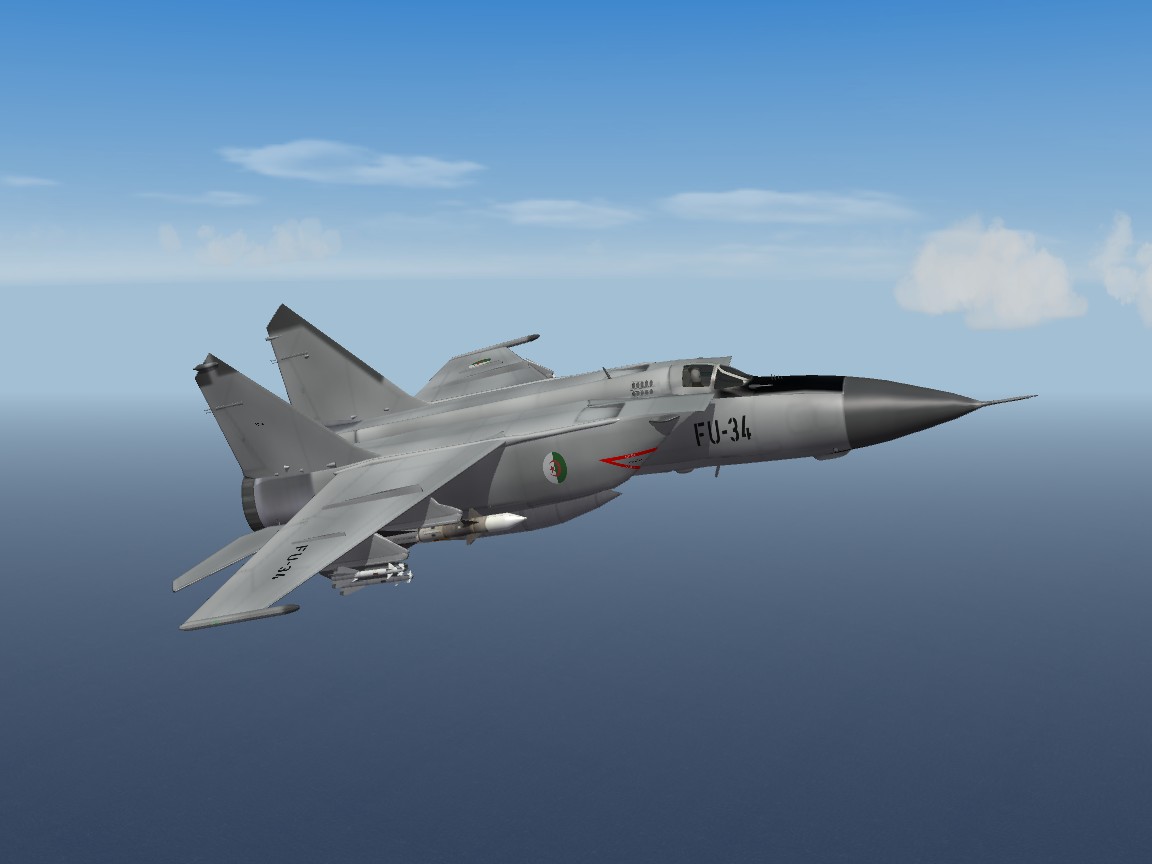
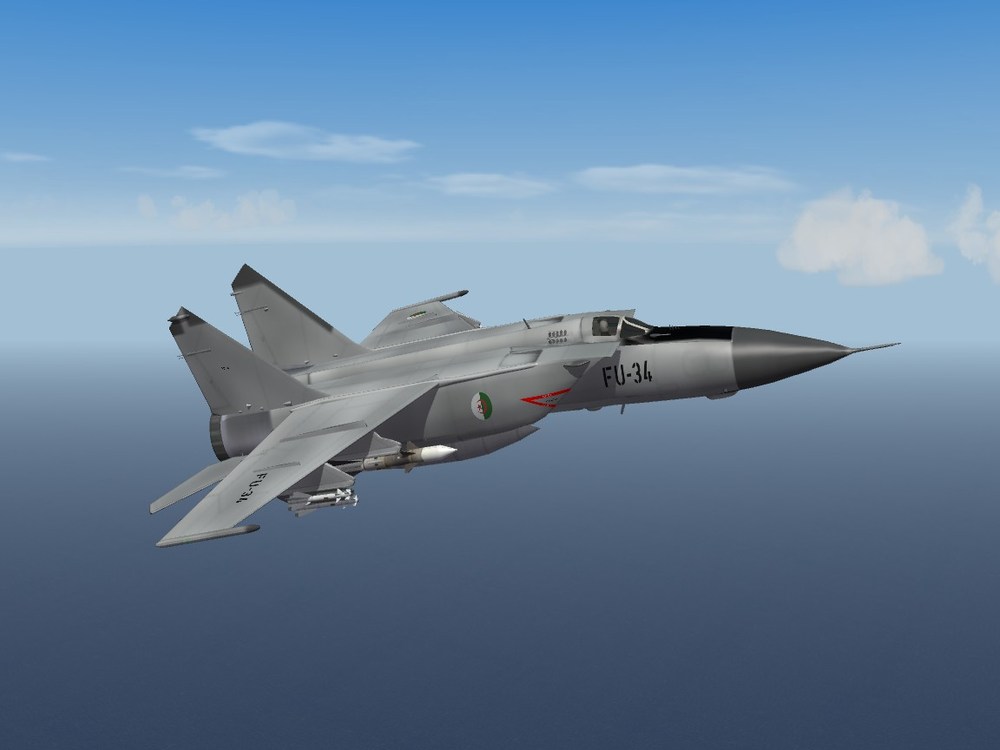
Was working on this (below), with all it's attendant issues, until I discovered the version by PauloPanz. With a model without tractor beams (HIGHLY recommended!). So, here's just a shot of my version, that I've archiving. (GET THE PAULO VERSION of the Foxbats!!!)
-
Following your leader through the low European clouds
Wrench replied to pagsab's topic in General Discussion
If you want to write out a full description, with step-by-step instructions, I'll see to it that is gets placed in Knowledge Base, for all to see :) -
Following your leader through the low European clouds
Wrench replied to pagsab's topic in General Discussion
You're leaving all the important stuff out. Like, 99.0% of all end users haven't got a clue on how to set up, let alone use the 3W TE. To say nothing that WW2 modding died 10 years ago. I should know ...- 10 replies
-
- 1
-

-
- cloud altitude
- euroww2
- (and 1 more)
-
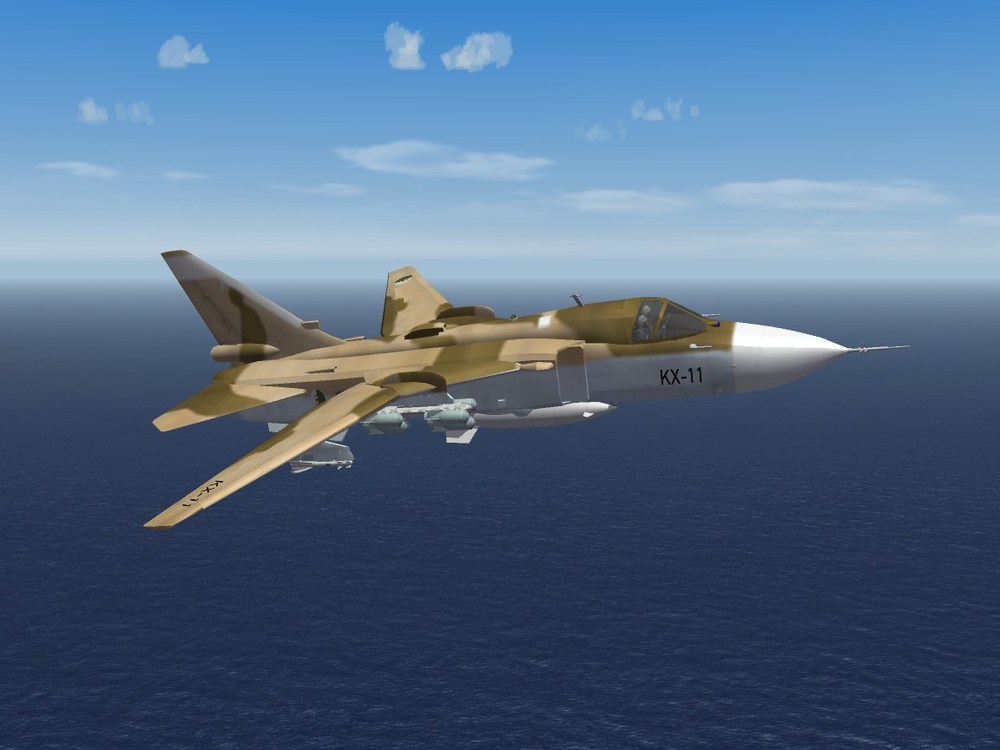
Taking a peak over the Fence(r)
-
Iberian Peninsula/North West Africa Terrain for SF2 ver 2.0
Wrench replied to Wrench's topic in File Announcements
Just letting everyone know that while the terrain is now out, there's still a few more aircraft to come!! -
View File Ground Objects For Iberian Peninsula/North West Africa Terrain Ground Objects For Iberian Peninsula/North West Africa Terrain 9/5/25 -- For SF2:Europe, or a Fully Merged Install -- Note - you need to have the Espana Terrain too! It's available at the following URL: https://combatace.com/files/file/18466-iberian-peninsulanorth-west-africa-terrain-for-sf2-ver-20/ This here package contains the required Ground Objects, Decals (for ships), Guns & Weapons required for the various objects and things herein. The Ground Objects included are ships, tanks, trucks, etc. and so forth. Remember, all the other items associated with this package are within the 'basic' terrain zip. As is always recommended, unzip to a temp folder or your desktop to give easy access to the rest of this readme for it's install instructions. PLEASE read them!!! The "Notes" section may also have some things to know, too :). Happy Landings! Wrench Kevin Stein Submitter Wrench Submitted 09/05/2025 Category Ground Object Mods
-
- 2
-
-

-

Version 1.0.0
65 downloads
Ground Objects For Iberian Peninsula/North West Africa Terrain 9/5/25 -- For SF2:Europe, or a Fully Merged Install -- Note - you need to have the Espana Terrain too! It's available at the following URL: https://combatace.com/files/file/18466-iberian-peninsulanorth-west-africa-terrain-for-sf2-ver-20/ This here package contains the required Ground Objects, Decals (for ships), Guns & Weapons required for the various objects and things herein. The Ground Objects included are ships, tanks, trucks, etc. and so forth. Remember, all the other items associated with this package are within the 'basic' terrain zip. As is always recommended, unzip to a temp folder or your desktop to give easy access to the rest of this readme for it's install instructions. PLEASE read them!!! The "Notes" section may also have some things to know, too :). Happy Landings! Wrench Kevin Stein- 1 review
-
- 4
-
-
-
View File Iberian Peninsula/North West Africa Terrain for SF2 ver 2.0 Iberian Peninsula/North West Africa Terrain ver 2.0 3/15/25 -- For SF2:Europe, or a Fully Merged Install -- This is a revamp/rebuild of the Spain, Portugal, Morocco and Algeria (parts thereof) terrain map from Cangas' "Operation Pelayo". It has been EXTENSIVELY reworked with many major corrections to tiling, height fields, target areas and the usual visual upgrades. Be it known, that the original campaign will most likely be VERY broken by all the terrain upgrades. Those that can, are encouraged to make the necessary changes to match this upgrade (it's included in this download). ==Please note: this terrain needs the SF2:E GermanyCE cat to fully operate, as several items on the map are only in that terrain cat. So, as stated in the header, Fully Merged or SF2:E REQUIRED.== *Be Advised! There are NO /Objects included with this package -- unfortunately, it put this terrain zip over the allowed limit of 500,000k. They are being released separately. *Geophysical Disclaimer: some rivers and other water features may not follow their Real Life (tm) courses, be placed in their Real Life (tm) locations, or exist at all. Several cities, other physical features and target areas will also fall into that classification. Due to some height field irregularities, some major airports are also NOT present. If added, the "flattening" would have changed the landscape too much for my liking. Some target areas (cities, etc.) exist only as named places, with no strategic or tactical values. Just someplace to fly over. * As should be expected, there are a boatload of various Easter Eggs scattered all over the map. There are also many new tiles, and new TODs to go with them. I've also included the original "Operation Pelayo" campaign ini for those with the talent to adjust and edit it for use with this updated terrain. OTH, you'll have to find your own aircraft for the various countries. Limited Nations is set the "TRUE", and there are NO restrictions on any mission types. The map has a 'given' start date of 1956, when Morocco gained independence. Although, it IS more designed for mid-1960s and later. This terrain is also =NOT= set as a Naval Map (meaning: no _water bmp with proper CV zones), even though there are several regional powers with aircraft carriers that would be usable. As is always recommended, unzip to a temp folder or your desktop to give easy access to the rest of this readme for it's install instructions. PLEASE read them!!! Happy Landings! Wrench Kevin Stein Edit: Here's a link to the Ground Objects zip. It's not included with the terrain due to file size issues https://combatace.com/files/file/18467-ground-objects-for-iberian-peninsulanorth-west-africa-terrain- / Enjoy! Submitter Wrench Submitted 09/05/2025 Category Full Terrains
- 1 reply
-
- 3
-
-
-

Version 1.0.0
82 downloads
Iberian Peninsula/North West Africa Terrain ver 2.0 3/15/25 -- For SF2:Europe, or a Fully Merged Install -- This is a revamp/rebuild of the Spain, Portugal, Morocco and Algeria (parts thereof) terrain map from Cangas' "Operation Pelayo". It has been EXTENSIVELY reworked with many major corrections to tiling, height fields, target areas and the usual visual upgrades. Be it known, that the original campaign will most likely be VERY broken by all the terrain upgrades. Those that can, are encouraged to make the necessary changes to match this upgrade (it's included in this download). ==Please note: this terrain needs the SF2:E GermanyCE cat to fully operate, as several items on the map are only in that terrain cat. So, as stated in the header, Fully Merged or SF2:E REQUIRED.== *Be Advised! There are NO /Objects included with this package -- unfortunately, it put this terrain zip over the allowed limit of 500,000k. They are being released separately. *Geophysical Disclaimer: some rivers and other water features may not follow their Real Life (tm) courses, be placed in their Real Life (tm) locations, or exist at all. Several cities, other physical features and target areas will also fall into that classification. Due to some height field irregularities, some major airports are also NOT present. If added, the "flattening" would have changed the landscape too much for my liking. Some target areas (cities, etc.) exist only as named places, with no strategic or tactical values. Just someplace to fly over. * As should be expected, there are a boatload of various Easter Eggs scattered all over the map. There are also many new tiles, and new TODs to go with them. I've also included the original "Operation Pelayo" campaign ini for those with the talent to adjust and edit it for use with this updated terrain. OTH, you'll have to find your own aircraft for the various countries. Limited Nations is set the "TRUE", and there are NO restrictions on any mission types. The map has a 'given' start date of 1956, when Morocco gained independence. Although, it IS more designed for mid-1960s and later. This terrain is also =NOT= set as a Naval Map (meaning: no _water bmp with proper CV zones), even though there are several regional powers with aircraft carriers that would be usable. As is always recommended, unzip to a temp folder or your desktop to give easy access to the rest of this readme for it's install instructions. PLEASE read them!!! Happy Landings! Wrench Kevin Stein Edit: Here's a link to the Ground Objects zip. It's not included with the terrain due to file size issues https://combatace.com/files/file/18467-ground-objects-for-iberian-peninsulanorth-west-africa-terrain- / Enjoy!- 1 review
-
- 6
-
-
-
It always amazes me the pilot could see where he was going!! That cockpit is SO cramped and full of stuff!!!
-
no, not yet. i was away most of yesturday, had to have dental surgury Agh!!! Try it over the weekend. Thank!
-
shoot, that thought NEVER occured to me!! At any rate, I've too much respect for you guys to say that.
-
View File SF2 MiG-23MF "Flogger-B" Algerian Air Force Skin Pack SF2 MiG-23MF "Flogger-B" Algerian Air Force Skin Pack 8/29/2025 -For SF2 =ONLY= (Full 4/5 Merged Recommended) Here be 2 new skins and decal sets for the stock 3W MiG-23MF "Flogger-B" as used by the Algerian Air Force from 1980 until it's retirement around 2010. The early skin is a rebadging of the Syrian camo (closest to Real Life), and the later skin is in a 2-tone Sand/Dark Earth by Gerwin. There is an active date switch for the later skin (see below) If you have made this plane flyable, and use the "read only main ini trick", you'll have to turn that off after adding this skin. See "Installation" for more details. All markings are decals, and decal randomization is TRUE. The Serial numbers are historically correct for this type of aircraft (23MF). You'll have 18 of them. However, while most the numbers are correct, they should be considered Generic in nature, as I could not find which squadron each served in. So, I just assigned it to one that was known to operate this model. On the Number list in, any marked with a star (*) are 100% correct for this aircraft type. Those with no markings, are "best guess" fillers. The same serial number decals are used for both skins. When on the Loadout Page, you'll see: For the Early skin: 28e Escadron d'Interception (QJJ)<1980 For the Later skin: 28e Escadron d'Interception (QJJ)<1990 As you can see, there is an active start date (listing in the texture set ini) and will luck it will turn on in 1990. Again, this is a 'best guess' as to when the QJJ went to the 2-tone. I have included a modified data and loadout ini. The data ini gives the aircraft some "hardening" (via aluminum armor), and the loadout ini adds the drop tank for all missions. All weapons used are stock, in-game items, so no additions are needed. I've also included a new pilot figure, "Red3201". The canopy is also activated, it uses the Standard Animation Keystroke (tm), Shift/0 (zero). What I have NOT given you, are the bits and bobs necessary to make it Player Flyable (tm). If you haven't done this, you'll have to root around for the needed cockpit in the CA downloads; it's not very hard to find. As an Extra Added Bonus (tm) just because I like you all, you get not one, not two, but THREE brand new hangar screens!! One is a 'generic' MiG-23, and the other 2 are skin-specific for these new Algerian ones. Instructions are in the "To Install" section down below. As is always recommended, unzip to a temp folder or your desktop to give easy access to the rest of this readme for it's install instructions. PLEASE read them, before installing!!! Also, the Notes section has more details on the changes. Happy Landings! Wrench Kevin Stein Submitter Wrench Submitted 09/03/2025 Category MiG-23
-
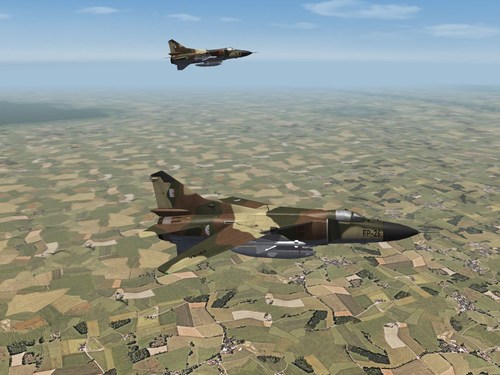
Version 1.0.0
26 downloads
SF2 MiG-23MF "Flogger-B" Algerian Air Force Skin Pack 8/29/2025 -For SF2 =ONLY= (Full 4/5 Merged Recommended) Here be 2 new skins and decal sets for the stock 3W MiG-23MF "Flogger-B" as used by the Algerian Air Force from 1980 until it's retirement around 2010. The early skin is a rebadging of the Syrian camo (closest to Real Life), and the later skin is in a 2-tone Sand/Dark Earth by Gerwin. There is an active date switch for the later skin (see below) If you have made this plane flyable, and use the "read only main ini trick", you'll have to turn that off after adding this skin. See "Installation" for more details. All markings are decals, and decal randomization is TRUE. The Serial numbers are historically correct for this type of aircraft (23MF). You'll have 18 of them. However, while most the numbers are correct, they should be considered Generic in nature, as I could not find which squadron each served in. So, I just assigned it to one that was known to operate this model. On the Number list in, any marked with a star (*) are 100% correct for this aircraft type. Those with no markings, are "best guess" fillers. The same serial number decals are used for both skins. When on the Loadout Page, you'll see: For the Early skin: 28e Escadron d'Interception (QJJ)<1980 For the Later skin: 28e Escadron d'Interception (QJJ)<1990 As you can see, there is an active start date (listing in the texture set ini) and will luck it will turn on in 1990. Again, this is a 'best guess' as to when the QJJ went to the 2-tone. I have included a modified data and loadout ini. The data ini gives the aircraft some "hardening" (via aluminum armor), and the loadout ini adds the drop tank for all missions. All weapons used are stock, in-game items, so no additions are needed. I've also included a new pilot figure, "Red3201". The canopy is also activated, it uses the Standard Animation Keystroke (tm), Shift/0 (zero). What I have NOT given you, are the bits and bobs necessary to make it Player Flyable (tm). If you haven't done this, you'll have to root around for the needed cockpit in the CA downloads; it's not very hard to find. As an Extra Added Bonus (tm) just because I like you all, you get not one, not two, but THREE brand new hangar screens!! One is a 'generic' MiG-23, and the other 2 are skin-specific for these new Algerian ones. Instructions are in the "To Install" section down below. As is always recommended, unzip to a temp folder or your desktop to give easy access to the rest of this readme for it's install instructions. PLEASE read them, before installing!!! Also, the Notes section has more details on the changes. Happy Landings! Wrench Kevin Stein -
View File SF2 MiG-23BN "Flogger-H" Algerian Air Force Skin Pack SF2 MiG-23BN "Flogger-H" Algerian Air Force Skin Pack 8/29/2025 -For SF2 =ONLY= (Full 4/5 Merged Recommended) Here 2 new skins for the stock 3W MiG-23BN "Flogger-H", as used by the Algerian Air Force from 1980 until it's retirement around 2005. The first skin is a rebadging of the stock Syrian 3-tone skin (closest in colors and pattern), and the second is a later Sand/Dark Earth camo by Gerwin (adapted from his 1stGen release). If you have made this plane flyable, and use the "read only main ini trick", you'll have to turn that off after adding these skins. See "Installation" for more details. All markings are decals, and decal randomization is TRUE. The Serial numbers are historically correct for this type of aircraft (23BN). You'll have 24 of them, and both skins use them. I've assigned it to the squadron known to operate this model. The skins remain in bmp format, in "3W Rez" (512x). When on the Loadout Page, you'll see: Camo 1 - 27e Escadron d'Attaque (QJJ)<1979 Camo 2 (Sand/Dark Earth) 27e Escadron d'Attaque (QJJ)<1990 As you can see, there is an active start date (as listed in the texture set ini) and will luck it will turn on in 1979, and then will switch in 1990. This is a 'best guess' as to the year of the switch; research has turned up no data. I have included a modified data and loadout ini. The data ini gives the aircraft some "hardening" (via aluminum armor), and the loadout ini adds the drop tank for all missions. I've also included a new pilot figure, "Red7001". The canopy is also activated, it uses the Standard Animation Keystroke (tm), Shift/0 (zero). What I have NOT given you, are the bits and bobs necessary to make it Player Flyable (tm). If you haven't done this, you'll have to root around for the needed cockpit in the CA downloads; it's not very hard to find (it's by Stary). However, I have given you repainted gunsight TGAs. They're in a very bright yellow, so as to make it easier to see for us Old Folks (tm). I've left original colored copies of all the gunsight tgas in the /cockpit folder, just in case you don't like the bright ones. You also get not one, not two, but THREE hangar screens!! One is a 'generic' MiG-23, and the other 2 are skin-specific for these new Algerian ones. Instructions are in the "To Install" section down below. As is always recommended, unzip to a temp folder or your desktop to give easy access to the rest of this readme for it's install instructions. PLEASE read them, before installing!!! Also, the Notes section has more details on the changes. Happy Landings! Wrench Kevin Stein Submitter Wrench Submitted 09/03/2025 Category MiG-23
-
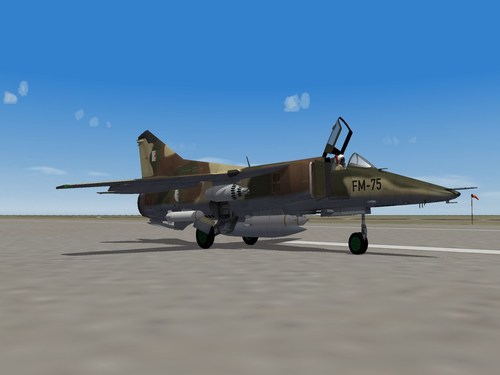
Version 1.0.0
27 downloads
SF2 MiG-23BN "Flogger-H" Algerian Air Force Skin Pack 8/29/2025 -For SF2 =ONLY= (Full 4/5 Merged Recommended) Here 2 new skins for the stock 3W MiG-23BN "Flogger-H", as used by the Algerian Air Force from 1980 until it's retirement around 2005. The first skin is a rebadging of the stock Syrian 3-tone skin (closest in colors and pattern), and the second is a later Sand/Dark Earth camo by Gerwin (adapted from his 1stGen release). If you have made this plane flyable, and use the "read only main ini trick", you'll have to turn that off after adding these skins. See "Installation" for more details. All markings are decals, and decal randomization is TRUE. The Serial numbers are historically correct for this type of aircraft (23BN). You'll have 24 of them, and both skins use them. I've assigned it to the squadron known to operate this model. The skins remain in bmp format, in "3W Rez" (512x). When on the Loadout Page, you'll see: Camo 1 - 27e Escadron d'Attaque (QJJ)<1979 Camo 2 (Sand/Dark Earth) 27e Escadron d'Attaque (QJJ)<1990 As you can see, there is an active start date (as listed in the texture set ini) and will luck it will turn on in 1979, and then will switch in 1990. This is a 'best guess' as to the year of the switch; research has turned up no data. I have included a modified data and loadout ini. The data ini gives the aircraft some "hardening" (via aluminum armor), and the loadout ini adds the drop tank for all missions. I've also included a new pilot figure, "Red7001". The canopy is also activated, it uses the Standard Animation Keystroke (tm), Shift/0 (zero). What I have NOT given you, are the bits and bobs necessary to make it Player Flyable (tm). If you haven't done this, you'll have to root around for the needed cockpit in the CA downloads; it's not very hard to find (it's by Stary). However, I have given you repainted gunsight TGAs. They're in a very bright yellow, so as to make it easier to see for us Old Folks (tm). I've left original colored copies of all the gunsight tgas in the /cockpit folder, just in case you don't like the bright ones. You also get not one, not two, but THREE hangar screens!! One is a 'generic' MiG-23, and the other 2 are skin-specific for these new Algerian ones. Instructions are in the "To Install" section down below. As is always recommended, unzip to a temp folder or your desktop to give easy access to the rest of this readme for it's install instructions. PLEASE read them, before installing!!! Also, the Notes section has more details on the changes. Happy Landings! Wrench Kevin Stein -
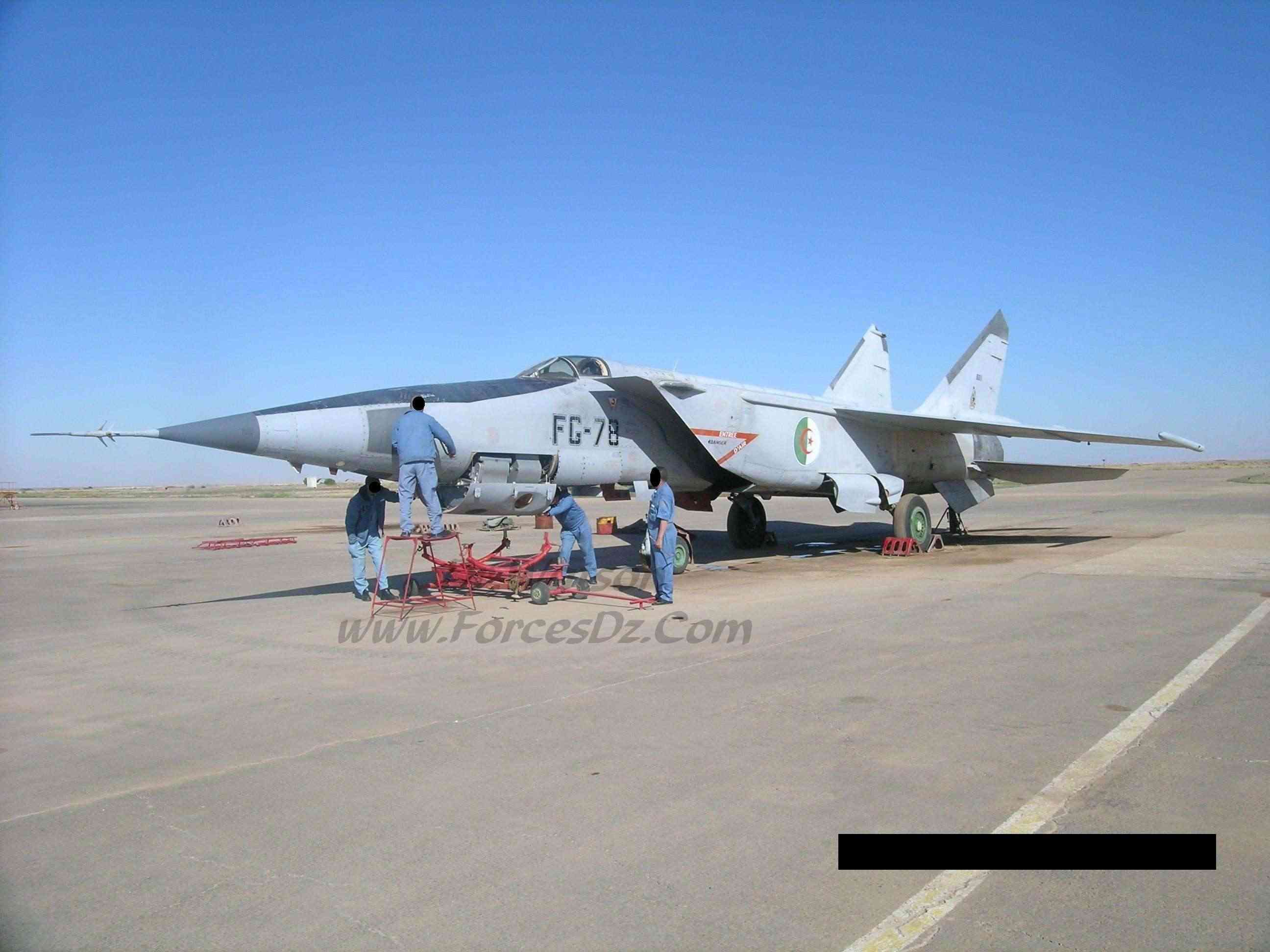
well, it would be "FU" for the PD variant -- i think the "FG" is used on the R I have the USN stencils -- i"ll make a few and see how they look (not outlined) thanks guys!!
-
Sure have!! Didn't find anything that was close. They're kind of 'hit and miss'
-
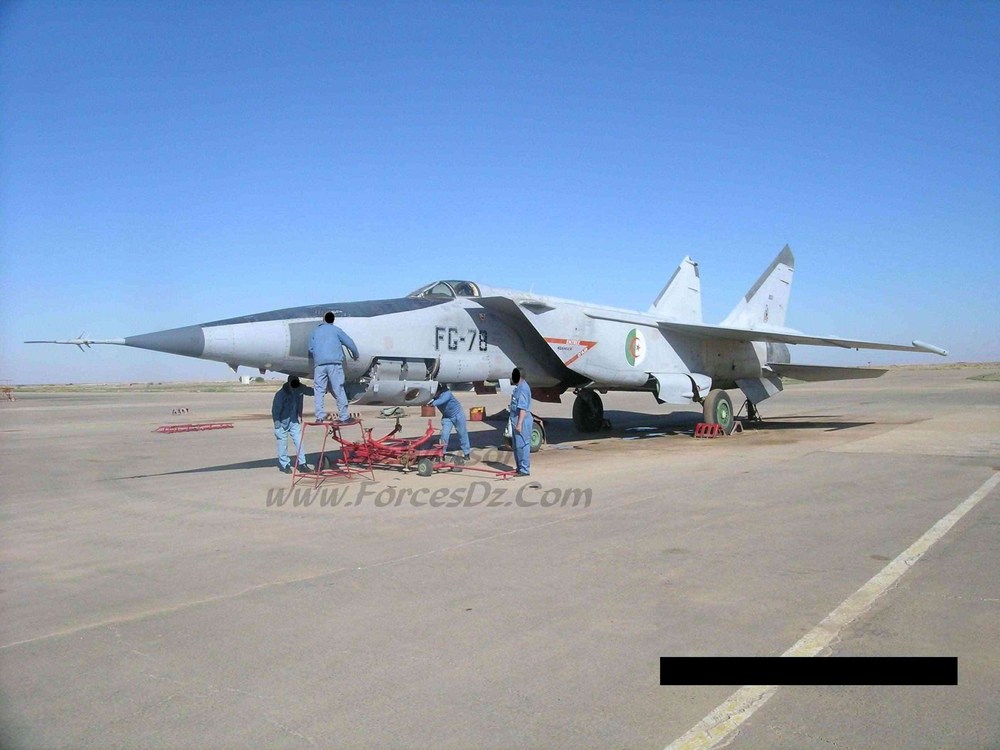
like the one seen here; outlined letters and numbers. Can be stencil or not. Odd thing is, I've go pictures of both presentations -- outlined stencil and solid non-stencil. Needs some opinions here, as I'll be making just new (and more) serial decals for Veltro's Foxbat and have 20 numbers 'found' TIA!
-
View File Template for 3rd Wire MiG-21bis, etc Here we have a new Home Grown Template (tm) for the stock MiG-21bis and bis B. There is a good possibility that it may also work on M, MF and others. I've not tested this, however. The template is in medium rez, 1024x1024. All new panel and rivet lines, and some weathering. There is also a "base" skin of 2-tone Sand/Dark Earth camo over a light blue-gray underside. Other texture artists are encouraged to make any and ally changes to improve it. Happy Skinning! Wrench Kevin Stein Submitter Wrench Submitted 09/01/2025 Category Skin Templates
-
- 1
-
-
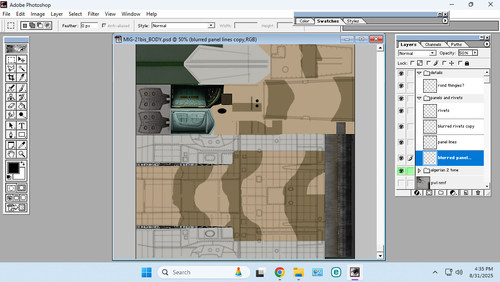
Version 1.0.0
16 downloads
Here we have a new Home Grown Template (tm) for the stock MiG-21bis and bis B. There is a good possibility that it may also work on M, MF and others. I've not tested this, however. The template is in medium rez, 1024x1024. All new panel and rivet lines, and some weathering. There is also a "base" skin of 2-tone Sand/Dark Earth camo over a light blue-gray underside. Other texture artists are encouraged to make any and ally changes to improve it. Happy Skinning! Wrench Kevin Stein -
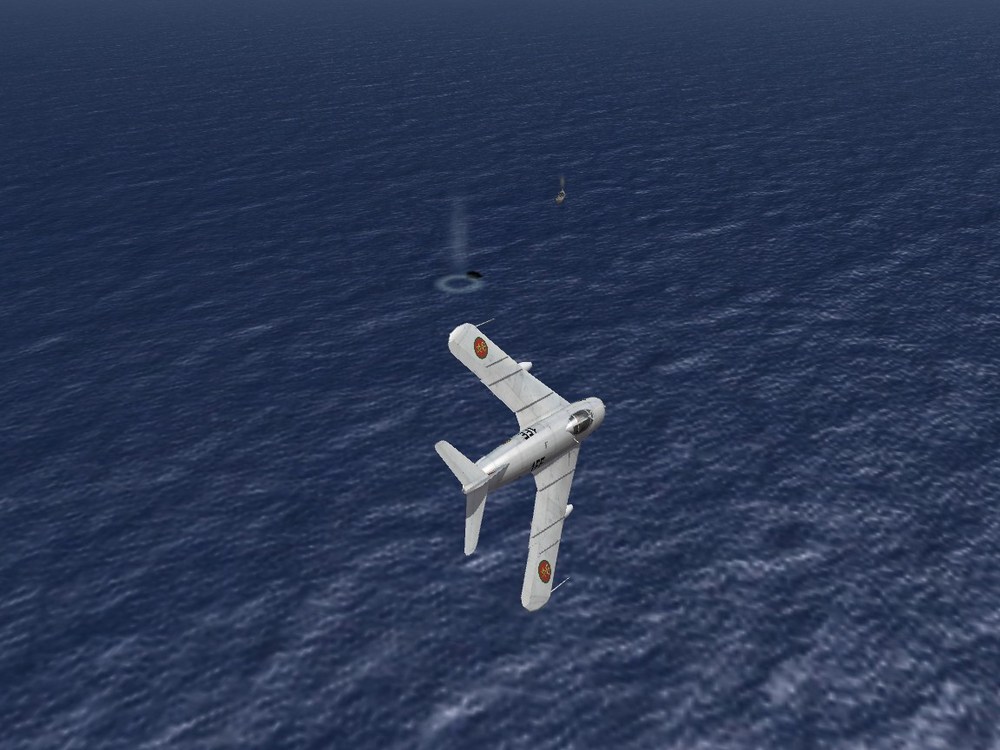
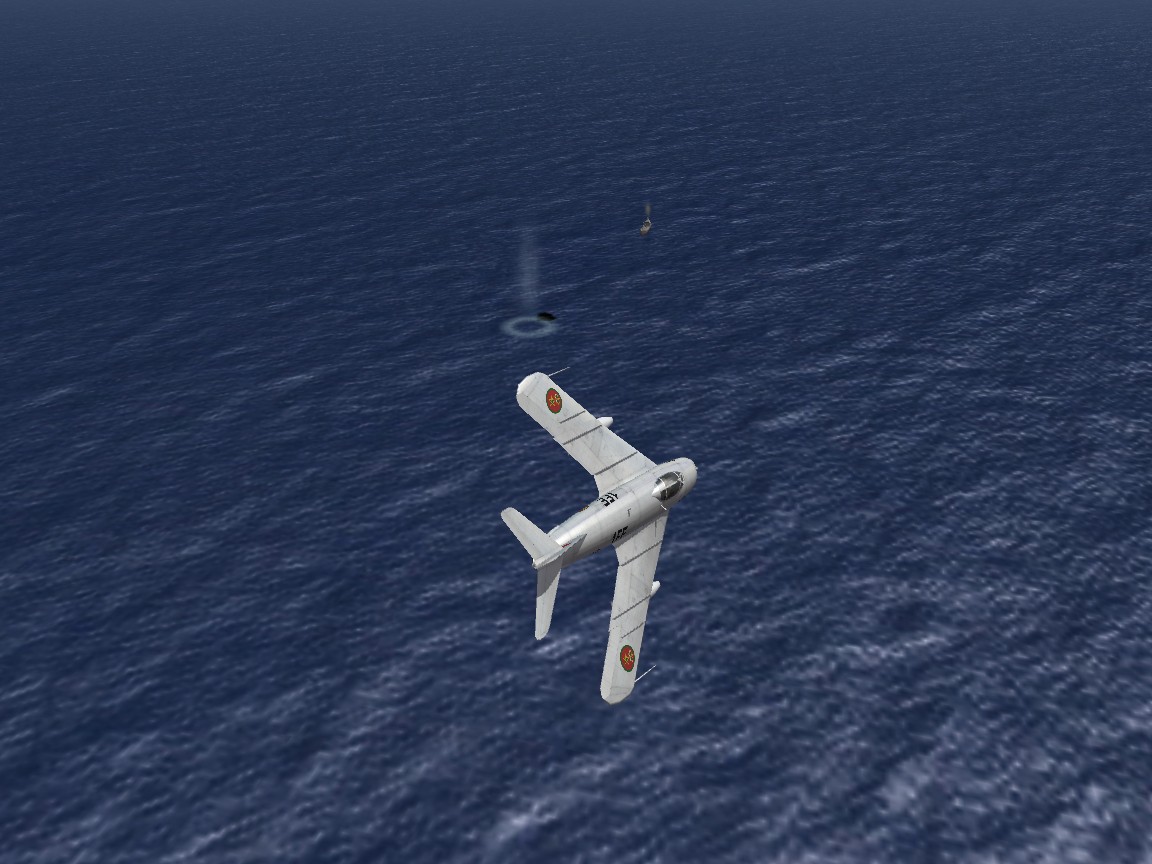
Was testing bits on a forthcoming terrain, and got zapped by something I didn't see. (that splash and oil slick is all that's left of me) Wingman got away. The only that can came to my mind, was a quote from a famous Robert E. Howard short story... "While Grom howled and beat his hairy chest, death came to me in the Valley of the Worm"